Guides: storage & data
How to encrypt one bucket on a shared backendHow to encrypt one bucket on a shared backend
On this page
This guide shows you how to encrypt one bucket with its own key while the other buckets on the same backend stay as they are. A bucket can carry its own encryption block, and that block replaces the encryption of its backend for that bucket only. For the mechanism (one keyring per backend, one key fingerprint per object), see encryption at rest.
The example encrypts db-archive, where backup-bot writes nightly database dumps, on the backend hetzner-fsn1. The bucket downloads on the same backend holds public installers, and it stays plaintext. You keep one backend for one storage account, and you do not define a second backend with the same credentials.
If you lose the bucket key, the objects that it encrypts are unrecoverable. A full backup (the Backup card on the System page) includes a key that is in the config file. It does not include a key that an environment variable supplies, and a backup on the same host is lost with the host. Store every key outside the proxy host as well, for example in a secrets manager.
A bucket block takes aes256-gcm-proxy, none, and on an S3 backend also the native modes sse-kms and sse-s3. The admin UI offers only the modes that the server accepts for the bucket's backend. With config_sync_bucket set (several instances), the encryption witness makes an instance that disagrees about a bucket's encryption refuse writes to it, so apply the same configuration on every instance. The encryption reference has the full list of rules.
Proxy-side AES needs a backend with atomic writes. The proxy rewrites encrypted objects in place when it converts a bucket or rotates a key, and each rewrite is conditional on the version of the object that it read. A backend that does not enforce conditional writes, such as Backblaze B2, could let a rewrite overwrite a newer client write. So the proxy probes the backend before it gives a bucket a proxy key, and it refuses the change with 409 atomic_writes_required on a backend without atomic writes. The backend card on Storage → Backends shows the verdict, and the admin UI does not offer proxy-side AES on such a backend. A filesystem backend, AWS S3, MinIO and Ceph RGW (for example Hetzner Object Storage) have atomic writes. On a backend without them, use the backend's own encryption (SSE) instead. See Encryption needs a backend with atomic writes.
1. Give the bucket its own key#
In the admin UI:
-
In the sidebar, open Storage → Buckets (
/_/admin/storage/buckets). -
Click the
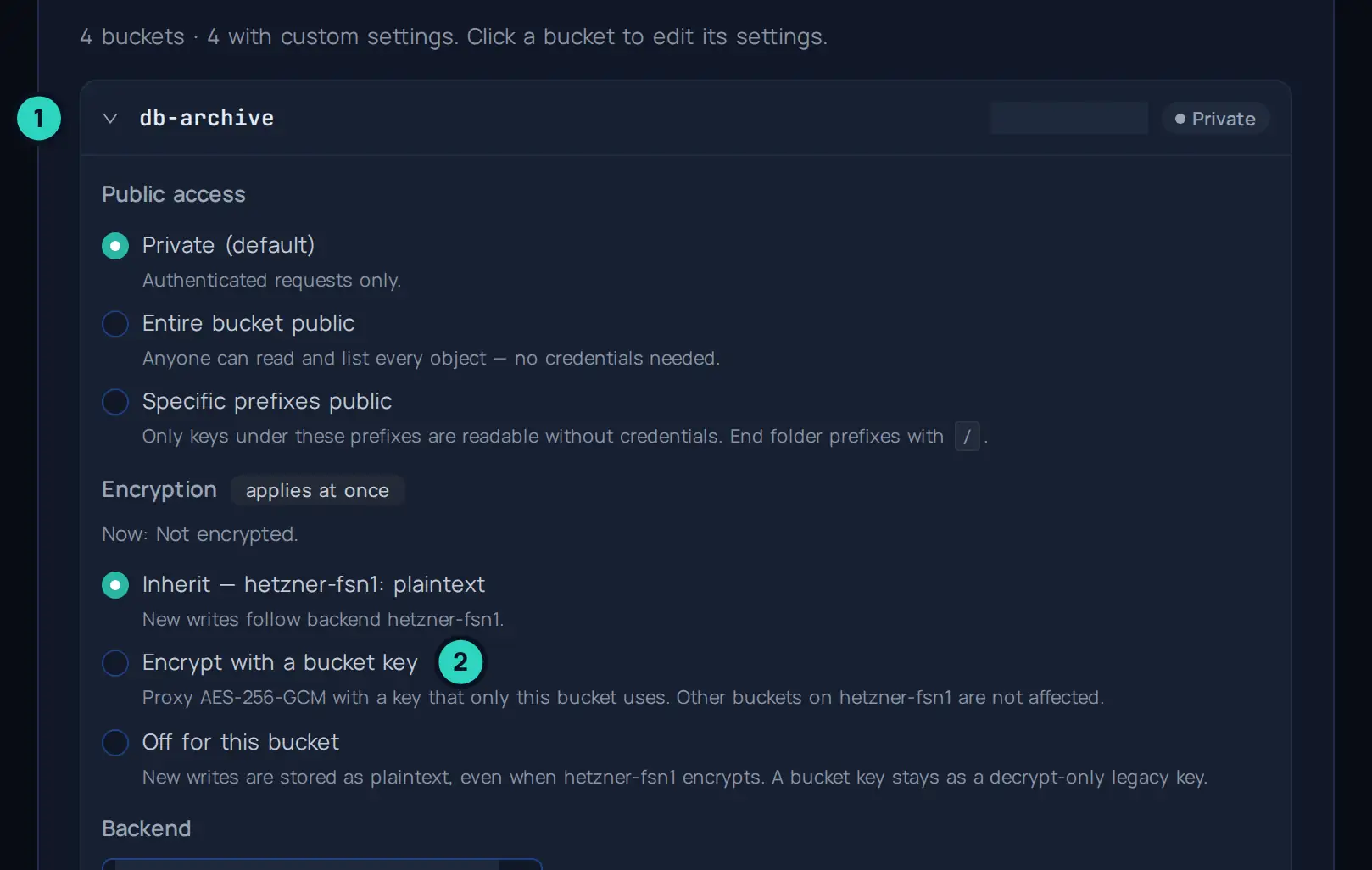
db-archiverow to open it. The Encryption group sits between Public access and Backend. It names the current state, for example "Now: Not encrypted.", and the first option names what the backend does: Inherit — hetzner-fsn1: plaintext. -
Select Encrypt with a bucket key.
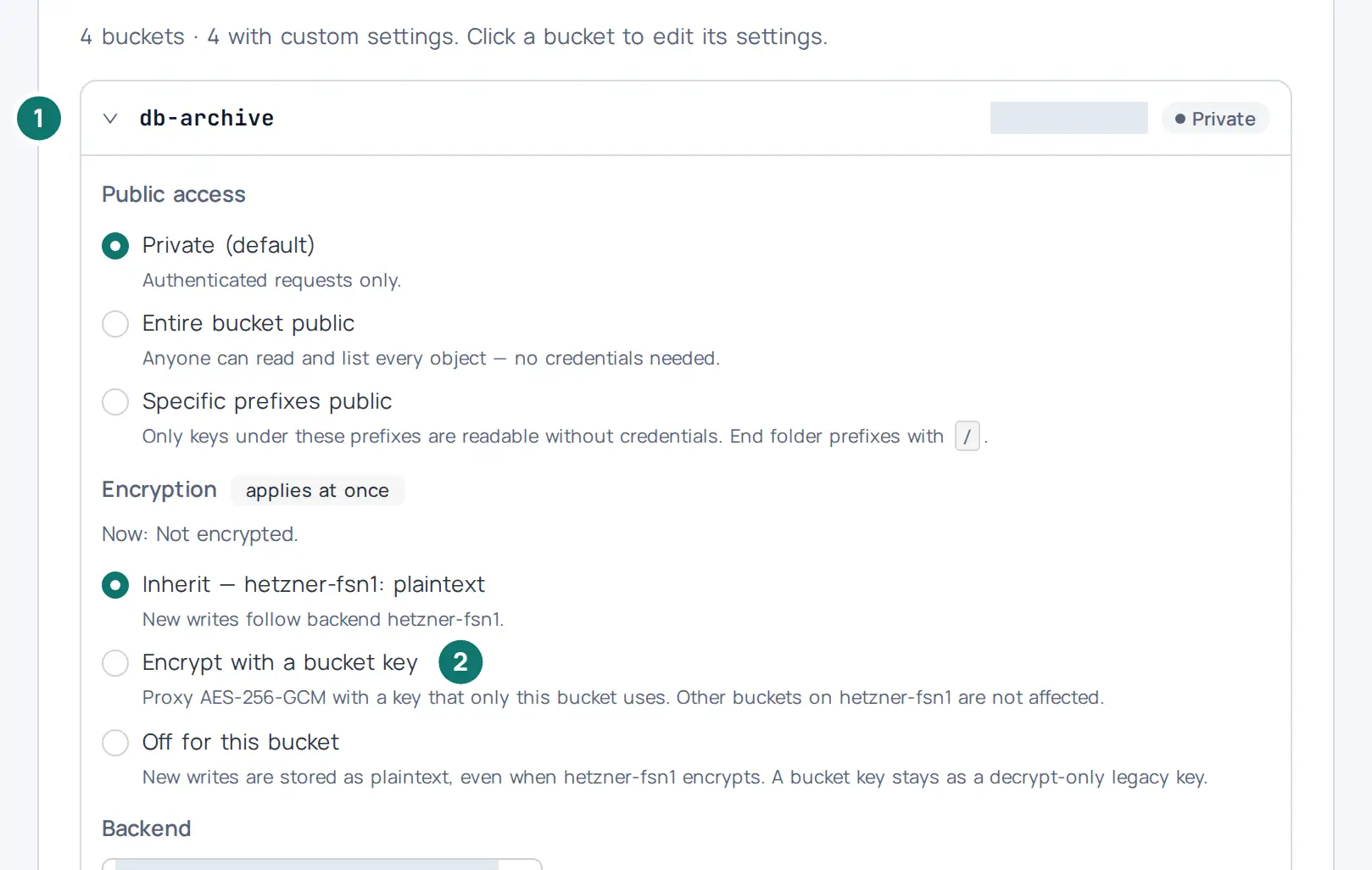
-
Leave Generate a key selected. The browser generates a random 256-bit key and shows it once, under Generated key (64 hexadecimal characters, shown once). To use a key that you already have, select Paste a key and paste the 64 hexadecimal characters.
-
Check the Key id. The admin UI, the audit log and the jobs show the key under this id. The objects themselves store only a fingerprint of the key, and the proxy picks the key by that fingerprint when it reads an object. The page suggests
db-archive-2026-10(the bucket name, the year and the month). A bucket key id is always explicit. Give each key its own id: one key cannot have two ids on one backend. -
Click Download key file, and store the file in your secrets manager. The file holds the bucket name, the backend, the key id, the date, the key and a recovery note. Copy puts only the key on the clipboard.
-
In To confirm that you stored the key, type its last 6 characters, type the last 6 characters of the key. Review & apply stays disabled until they match. This check replaces an "I stored it" checkbox: you can only type the characters when you have a copy of the key.
-
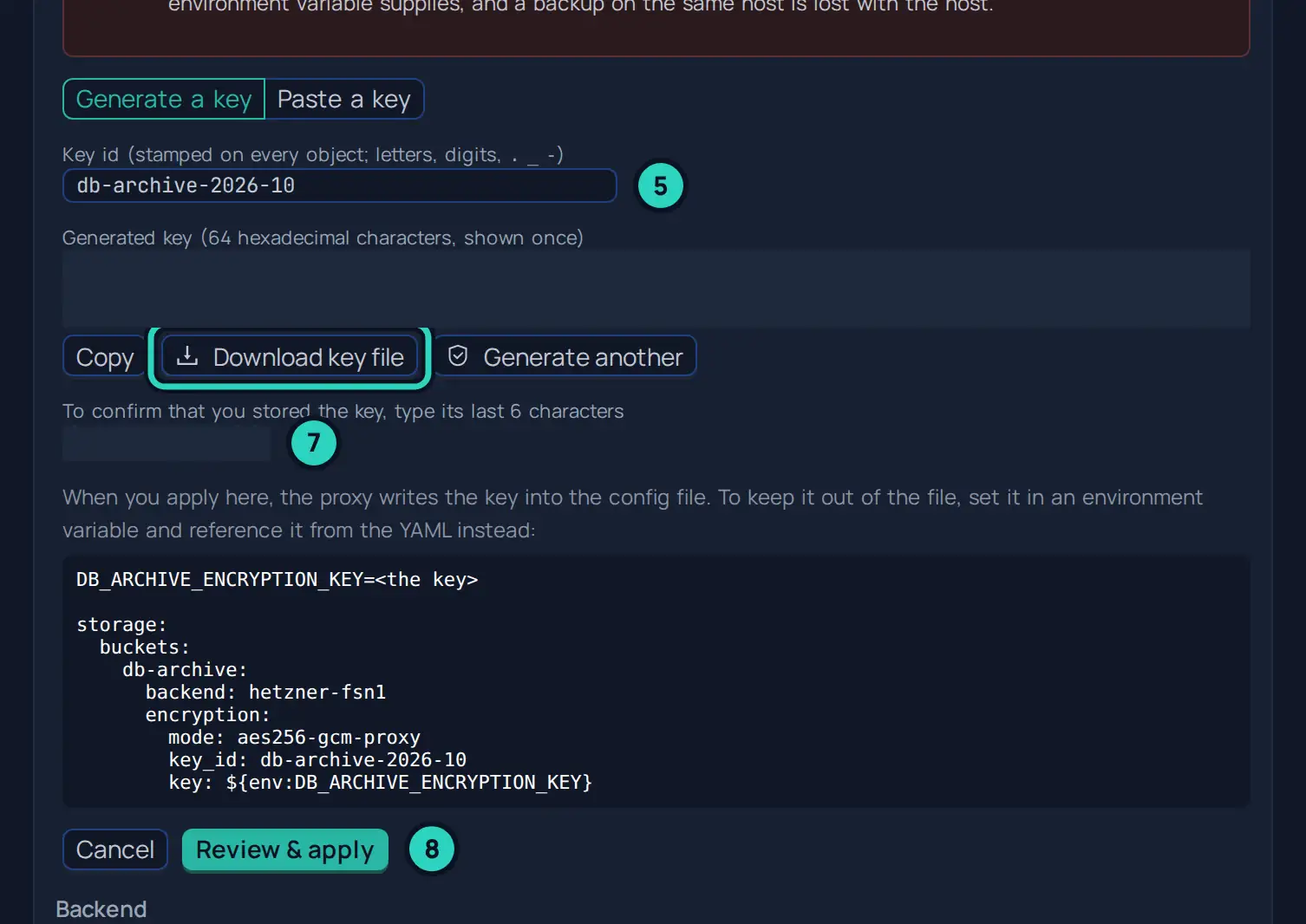
Click Review & apply.
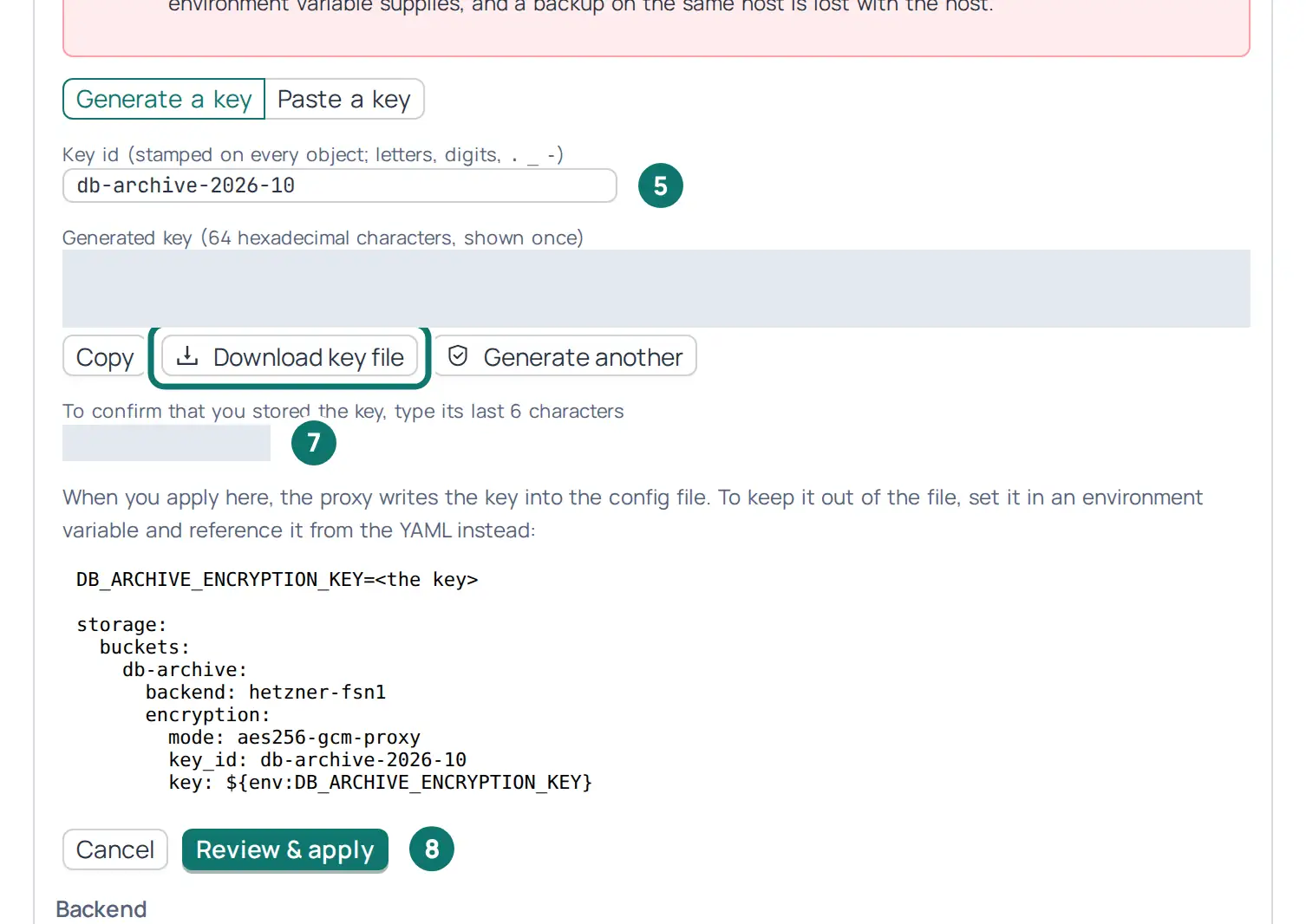
-
Read the dialog, check the diff, and then click Apply and Persist. When
db-archivealready holds objects, the dialog says how many of them are not encrypted yet, and that a re-encrypt job encrypts them in the background while they stay readable. On a backend without conditional writes, it also says that the job gives the bucket a temporary503for uploads and deletes while it runs. When the backend keeps old versions of the bucket, the dialog warns that their plaintext versions stay on the backend, and it has the box Also delete the old unencrypted versions. Leave the box clear, unless the old plaintext versions must go: the job then deletes them for good, and they cannot be restored (details).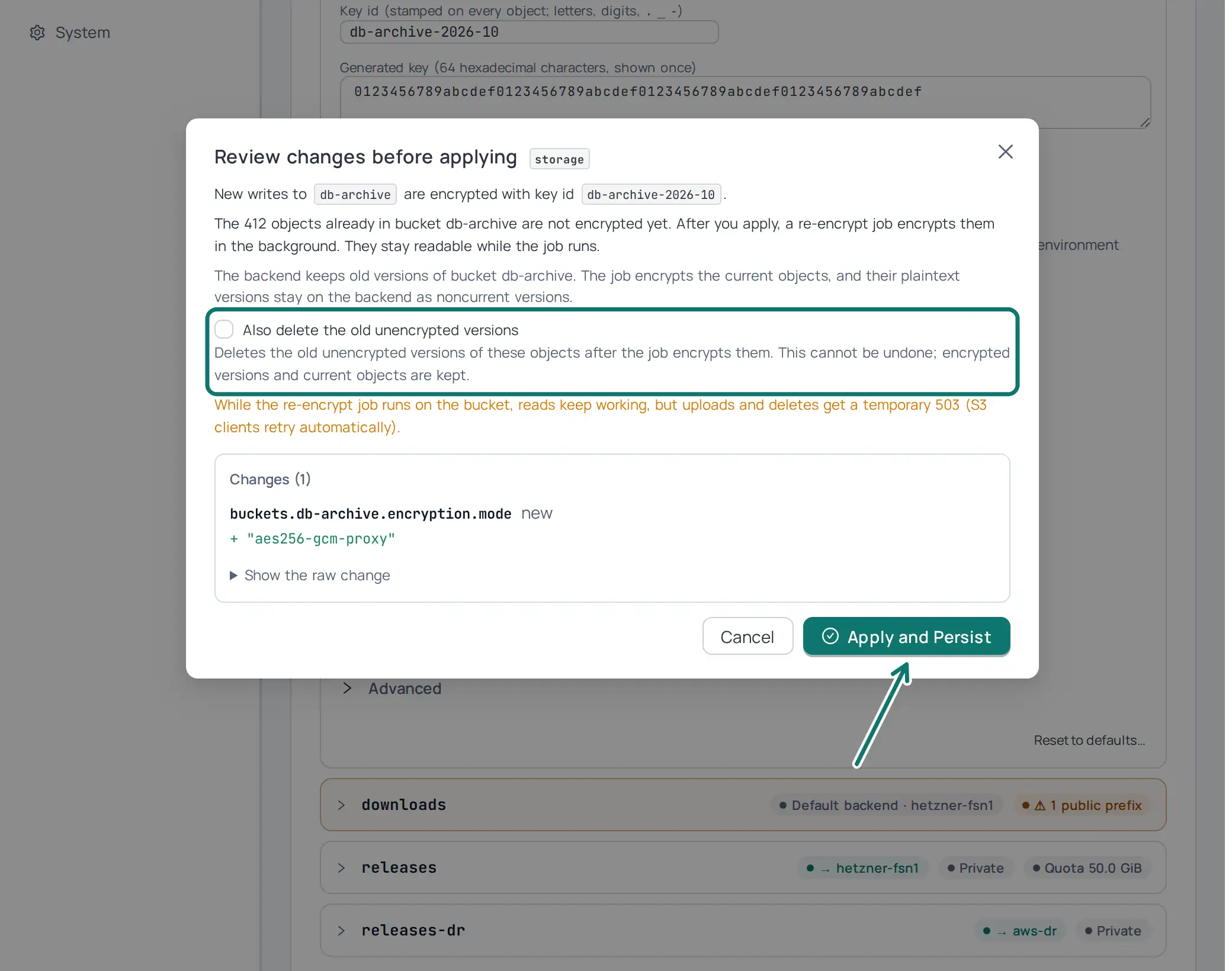
The change applies at once, with its own request. It is not staged with the other fields of the bucket, so the Encryption group waits while the page has unsaved changes: apply or discard them first. When the bucket has no explicit backend yet, the page also sets backend: hetzner-fsn1, because a bucket's own block belongs to the storage that holds the bucket, and the server refuses a block without a backend when named backends exist.
The objects that db-archive already holds are plaintext, because hetzner-fsn1 does not encrypt. In a bucket that encrypts, the proxy refuses a plaintext object, because it cannot tell the history of the bucket from an object that someone planted on the backend (why). The apply therefore opens a conversion window for db-archive and starts its re-encrypt job. While the window is open, clients read the objects that the backend stored before the apply. Section 2 shows how to follow the job.
When you apply here, the proxy writes the key into the config file, in plain text, in the key field of the bucket. The key setup shows the YAML and the environment variable that keep the key out of the file (see the next section).
2. Encrypt the objects that the bucket already holds#
The new key encrypts new writes only. The objects that db-archive already holds stay in the form that they were written in until the re-encrypt job rewrites them. An object that the backend key encrypted stays readable, because the keyring of the backend holds that key. A plaintext object stays readable while the conversion window of the bucket is open. The apply of section 1 already started the job, so you follow it, and you act only when it stops.
In the admin UI:
- On Storage → Buckets, the state line of
db-archivecontinues with the progress of the job, for example "Now: Encrypted · bucket key db-archive-2026-10 · encrypting the existing objects, 42%". The other buckets onhetzner-fsn1are not affected. While the job runs, reads ofdb-archivework. Uploads and deletes work too whenhetzner-fsn1enforces conditional writes (the proxy checks this with the capability probe), because every rewrite of the job is then conditional on the object that the job read. On a backend without conditional writes, uploads and deletes get503 SlowDownuntil the job ends, and S3 clients retry them (details). - To see the job, click View run in that line. The job opens on Storage → Jobs.
- When the job converted every object, it closes the window, and the progress goes away from the state line.
- When the line says that the encryption of the existing objects stopped with failures, open the Failures tab of the run, fix the cause, and click Resume in the line. When the line says that the conversion stopped before it finished, the window passed its deadline of 7 days, and reads of the objects that are not encrypted yet fail. Click Resume in that case too: it opens the window again with a new deadline and continues the job.
- When the line names objects stored after the cutoff, click it. The run's Failures tab lists objects that the backend stored after the apply without encryption. Clients could not read them, and the job converted them. Check that each of them is an object that you expect. An object that nobody wrote through the proxy can be an object that someone planted on the backend.
The conversion is not configuration, so this section has no YAML. Resume is the same request as a new job for the bucket, and the job extends the window by itself: POST /_/api/admin/jobs/reencrypt with {"buckets": ["db-archive"]}.
3. Create a bucket that is encrypted from its first object#
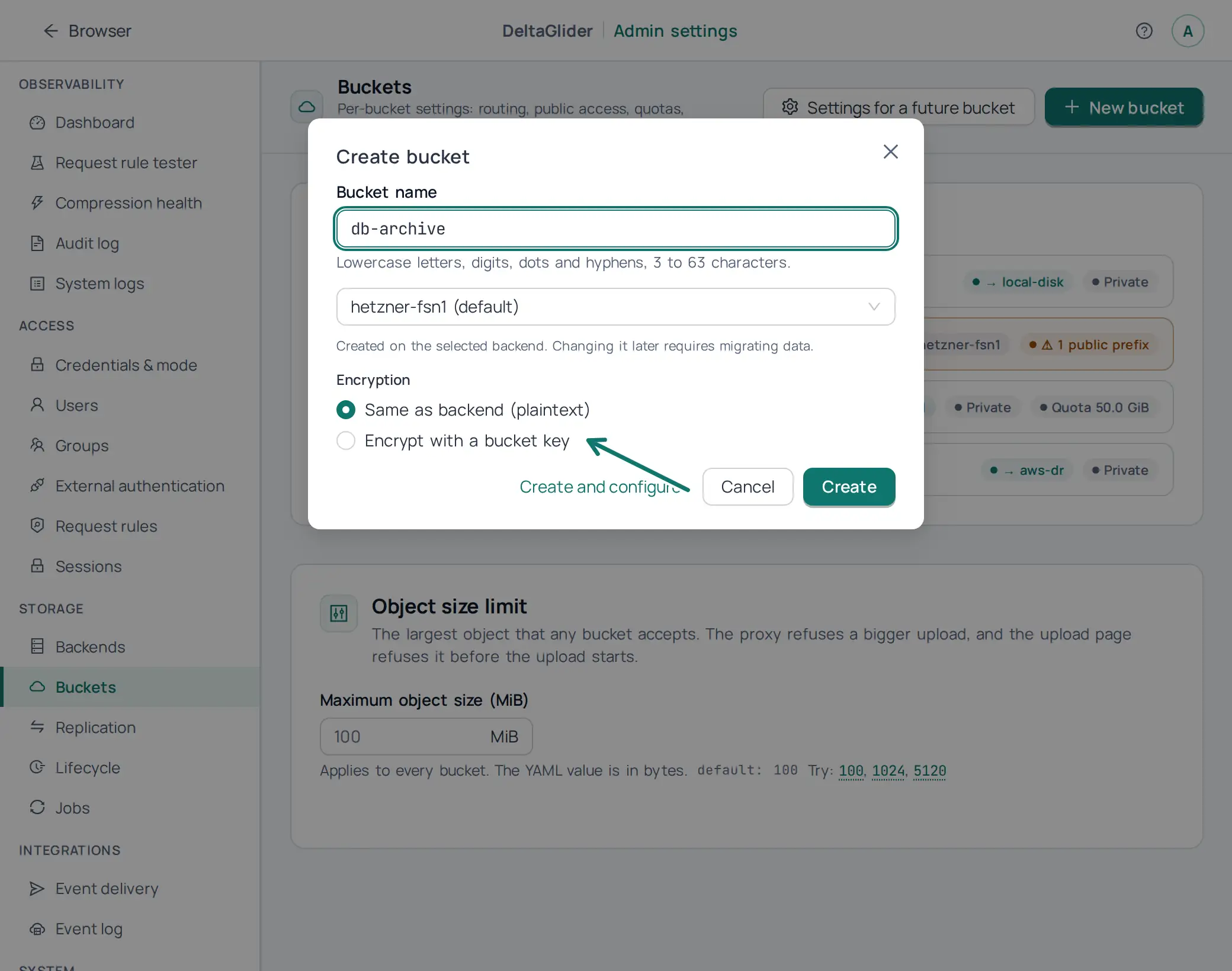
To create a new bucket with its own key, choose the encryption in the create dialog. The dialog sends the bucket's encryption block with the create request, and the proxy writes the route, the block and the bucket in one step. No object is ever written in the backend's mode first. The proxy refuses a name that already exists, and it changes nothing for it.
-
On Storage → Buckets, click New bucket at the top right of the page.
-
Type the bucket name. In the backend list, each backend names its encryption, for example
s3 · plaintext. -
Under Encryption, select Encrypt with a bucket key. The default is Same as backend (plaintext), which writes no block.
-
Follow steps 4 to 7 of section 1, and then click Create.
The default option names what the bucket gets without a choice. For a name that already has settings (a bucket that you prepared with Settings for a future bucket), it is Keep the settings this name already has. Off for this bucket on an encrypting backend asks you to confirm plaintext before the dialog sends the request.
If the proxy refuses the request, or the create fails, the proxy keeps nothing of it, and the dialog shows the reason. Settings with a key for a bucket that does not exist (for example from a release before this one) show as bucket not found on the Buckets page. To drop them, open the row, select Remove these settings… in the ⋯ menu, and confirm. No object can use the key of a bucket that does not exist, so the proxy removes it without a key check.
The same change in YAML#
The steps above write this configuration into the storage section of deltaglider_proxy.yaml (why the UI and the file hold the same configuration). This example keeps the key out of the file with a ${env:...} reference. Any variable name works: the proxy expands the reference when it loads the file, and it never writes the key value back into the file.
# validate
storage:
  default_backend: hetzner-fsn1
  backends:
    - name: hetzner-fsn1
      type: s3
      endpoint: https://fsn1.your-objectstorage.com
      region: fsn1
      force_path_style: true
  buckets:
    downloads:
      public_prefixes: ["public/"]
    db-archive:
      backend: hetzner-fsn1
      encryption:
        mode: aes256-gcm-proxy
        key_id: db-archive-2026-10
        key: ${env:DB_ARCHIVE_ENCRYPTION_KEY}
Set the variable in the environment of the proxy, for example DB_ARCHIVE_ENCRYPTION_KEY=<64 hexadecimal characters>. While the key comes from a variable, the Encryption group of the bucket is read-only and shows a from env DB_ARCHIVE_ENCRYPTION_KEY badge: change the key in the deployment, not in the admin UI.
After you edit the file, apply it to the running proxy with POST /_/api/admin/config/apply or with deltaglider_proxy config apply deltaglider_proxy.yaml --server https://s3.acme.example. The apply does what the admin UI does: it opens the conversion window of db-archive and starts its re-encrypt job, and its response lists the bucket in conversions (admin API). On a backend that keeps old versions, the header X-DGP-Purge-Plaintext-Versions: true with POST /_/api/admin/config/apply makes the job delete the old plaintext versions. The apply is refused with 409 while another job, for example a migration, is active on the bucket.
A restart from the edited file starts the conversion of db-archive too, when no proxy encrypted the bucket before: the proxy checks the bucket after it starts, opens its window and queues the re-encrypt job, and the log names both. The check runs in the background, so reads of old objects can fail for the first seconds after the start. When the log has a warning for db-archive instead, open the conversion yourself with POST /_/api/admin/jobs/reencrypt and {"buckets": ["db-archive"], "open_window": true}. A bucket that the create dialog of section 3 makes needs no conversion, because it holds no objects.
Rotate the bucket key, turn it off, and clear the old key#
In the open bucket row:
- Rotate key gives the bucket a new key and a new key id, with the same key setup as section 1. The old key becomes a decrypt-only legacy key, so the objects under it stay readable. The page offers the re-encrypt job for the bucket afterwards.
- Off for this bucket stores new writes as plaintext, even when the backend encrypts. It is not the same as Inherit. The bucket key stays as a decrypt-only legacy key. Because new writes lose their encryption, the page asks you to confirm first, and the request carries the header
X-DGP-Confirm-Encryption-Downgrade: db-archive. - Inherit removes the bucket's block, so the bucket follows its backend again. The page offers it only when the bucket holds no key of its own. A key that objects use never leaves in one step.
One legacy slot exists per bucket. While it holds a key, Rotate key and Off for this bucket are disabled, and the bucket row shows a Decrypt-only shim active banner. To clear the legacy key:
- Run the re-encrypt job for the bucket.
- In the banner, click Check usage. The proxy scans every bucket on the backend for objects and delta references that still carry the legacy key id (
GET /_/api/admin/backends/hetzner-fsn1/legacy-key-usage?bucket=db-archive). - When the check finds no such object, click Clear legacy key, and confirm. The request carries the header
X-DGP-Confirm-Key-Removal: <legacy key id>.
How to rotate or change encryption keys explains the legacy slot in detail.
Several instances#
With config_sync_bucket set, the instances share the encryption of each bucket through the encryption witness in the sync bucket. Each instance compares the encryption that it uses for new writes to a bucket with the encryption that the witness holds for that bucket. When the two differ, that instance refuses writes to the bucket with 503 SlowDown. Reads keep working, and so do writes to the other buckets. A config apply that changes the encryption of a bucket publishes the new encryption, so the change in section 1 needs nothing more: apply it on every instance. A restart with a new config publishes nothing, so after such a rollout you publish the encryption of the instances that have the new config.
In the admin UI, on an instance that has the new config:
-
Open Storage → Buckets (
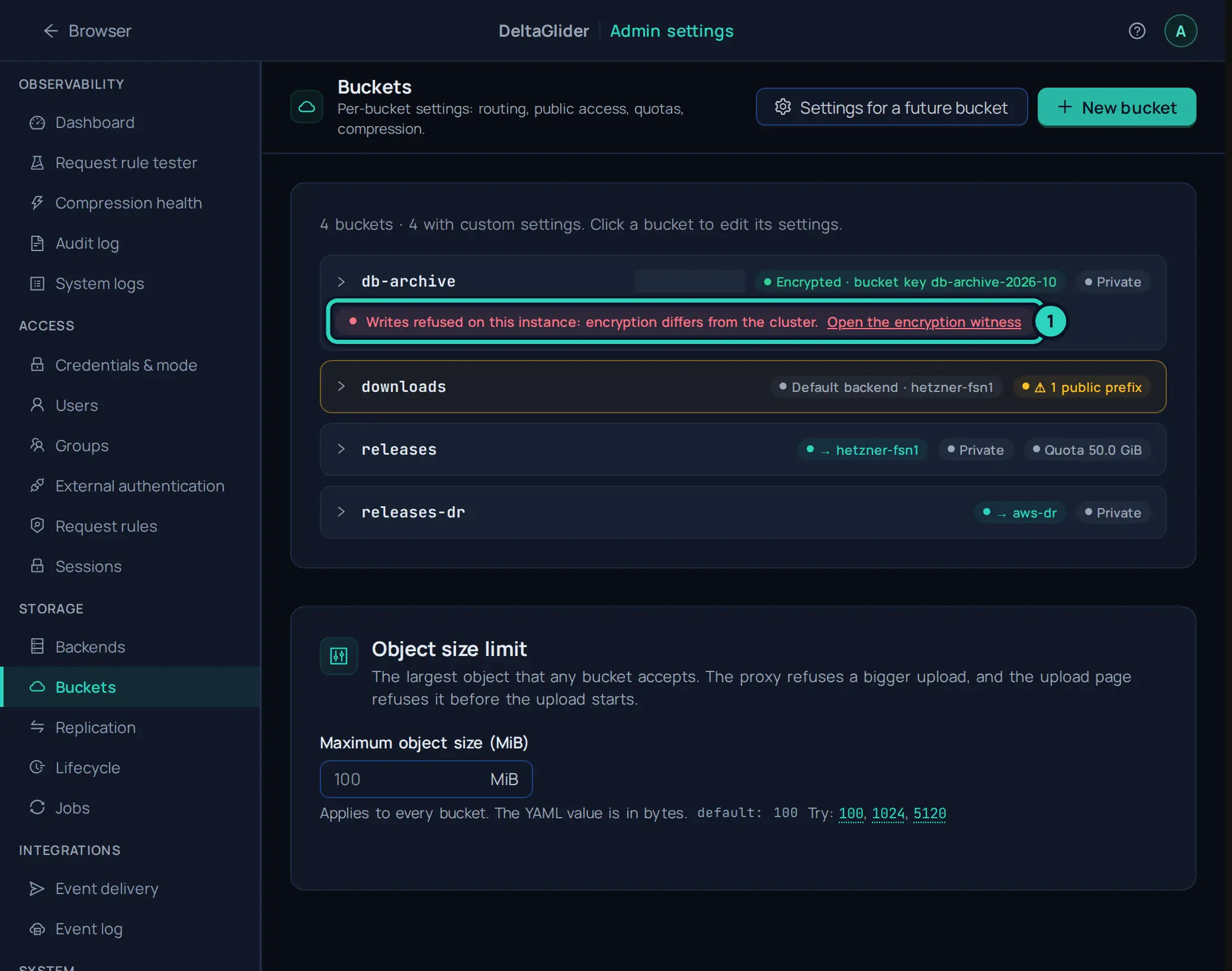
/_/admin/storage/buckets). A bucket that this instance refuses to write carries the warning Writes refused on this instance: encryption differs from the cluster. Click Open the encryption witness in the warning.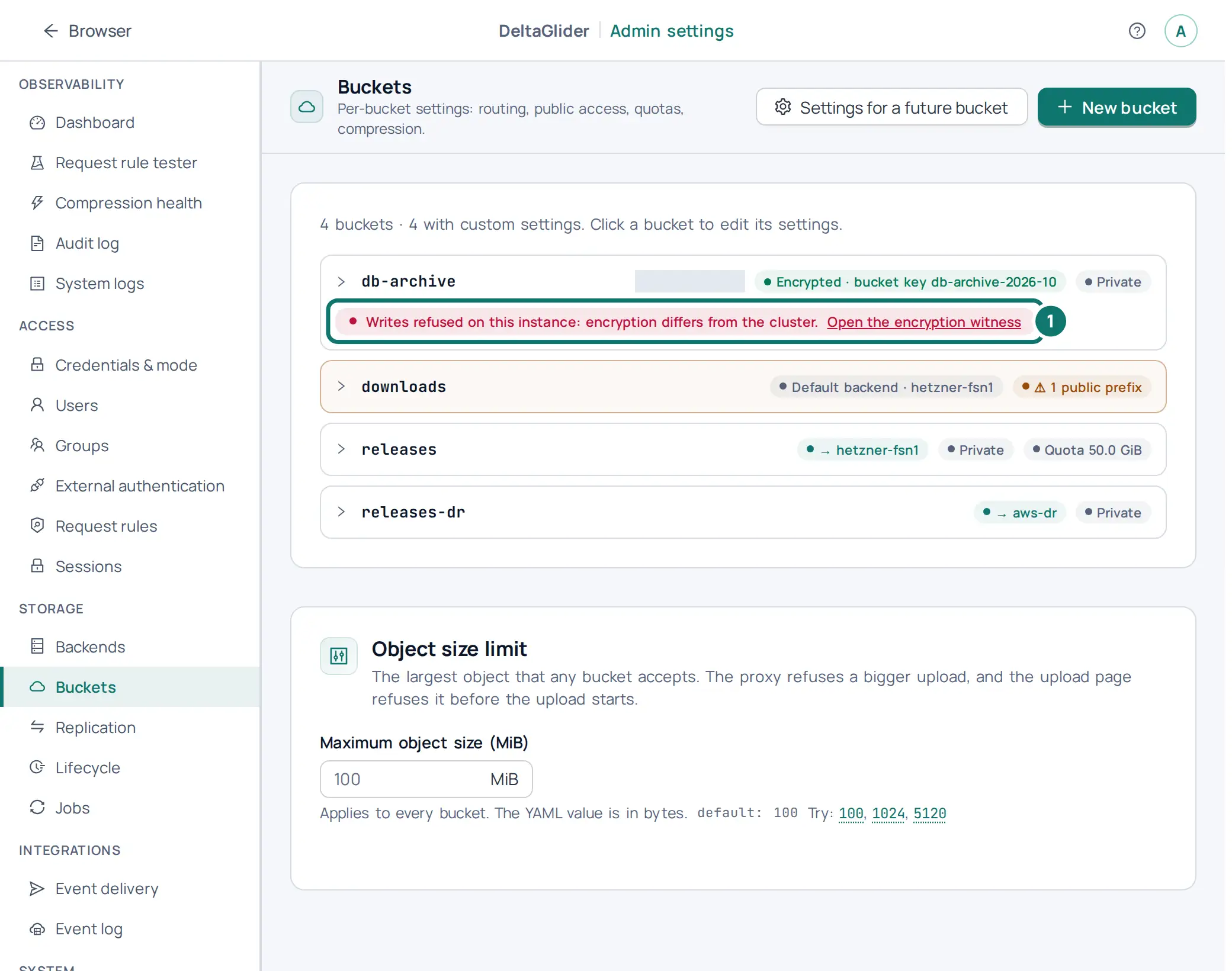
-
The link opens the Encryption witness card on System → System (
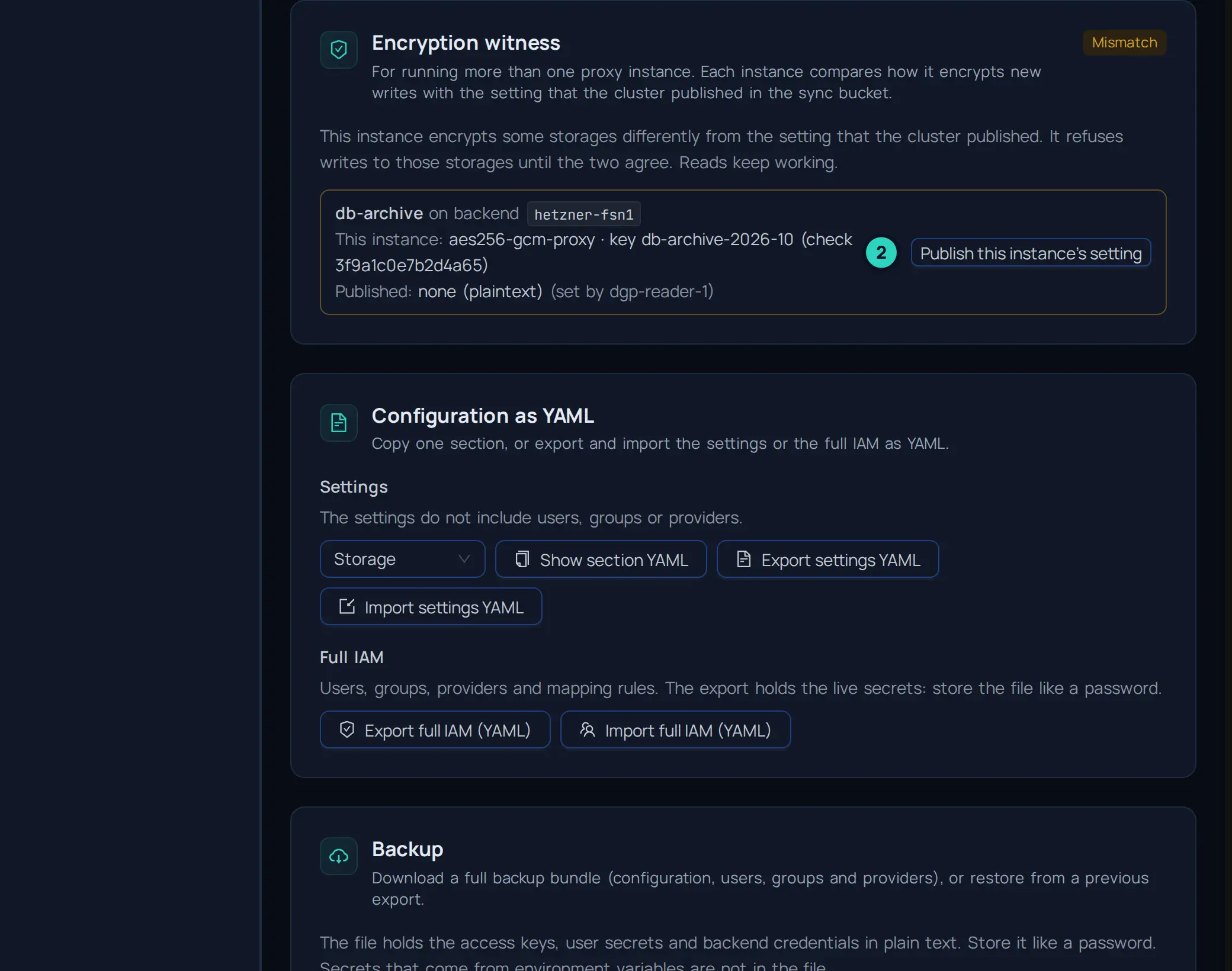
/_/admin/system). The card shows the state of this instance: Agree, Mismatch, Unknown (the sync bucket did not answer) or Unavailable (this instance has no client for the sync bucket). For each mismatch, it shows the bucket, the backend, the encryption of this instance, the encryption that the witness holds, and the instance that published it. A row for All buckets without their own setting stands for the buckets of the backend that have no entry of their own. Check that this instance has the encryption that you want for the bucket, and click Publish this instance's setting in its row. Publish all publishes every row at once.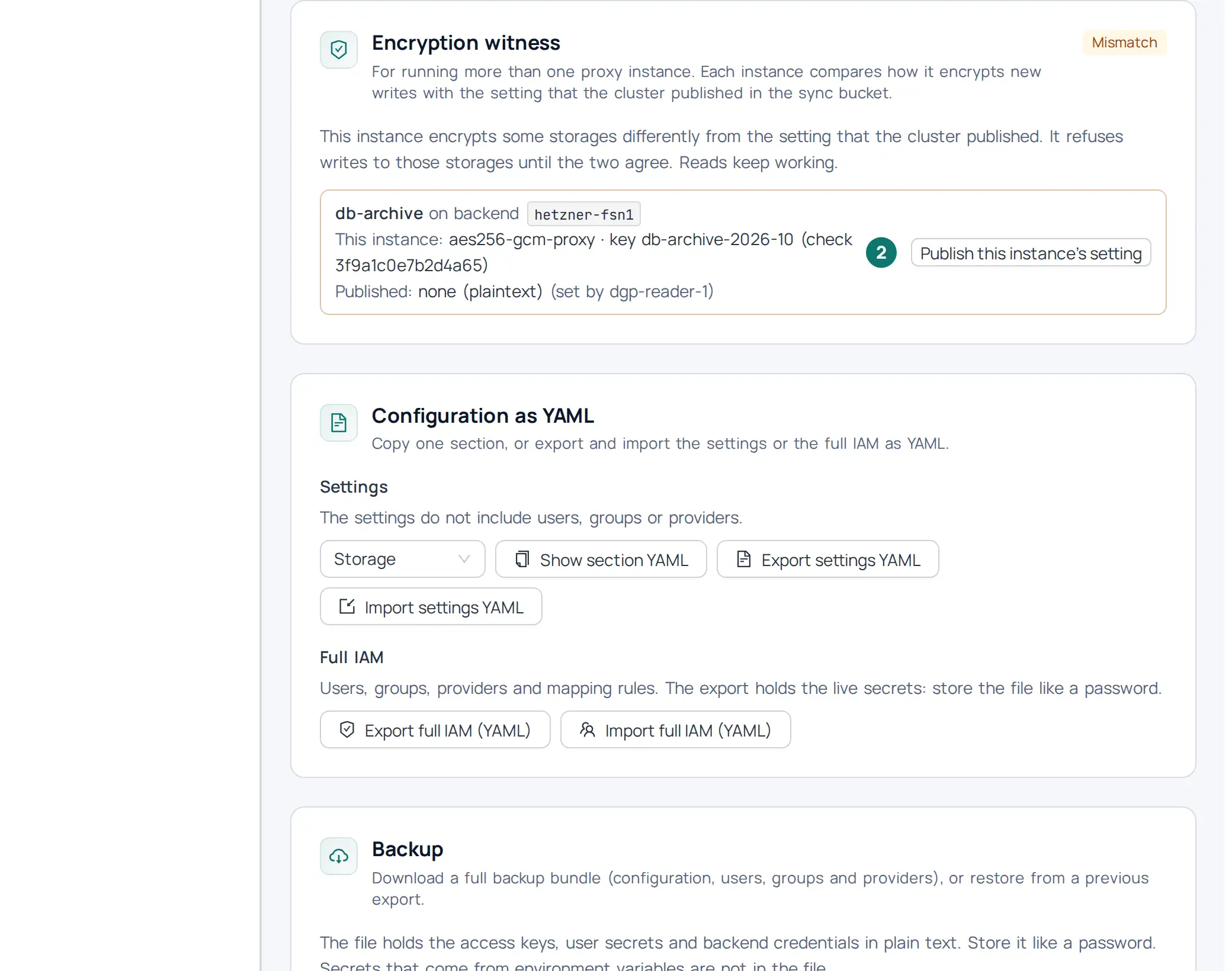
When this instance stores the bucket in plaintext, the publish is a downgrade for every instance. The page asks you to confirm with Publish plaintext, and the request carries the header
X-DGP-Confirm-Encryption-Downgrade.
After the publish, the instances that have the same encryption write the bucket again. An instance that still has the old config refuses writes until you give it the new config. The card is not on the page of a single instance, because a single instance has no witness. To publish from the command line (deltaglider_proxy witness publish), and for the rules of the witness, see How to run multiple instances.
Other proxies on the same backend#
A proxy with its own configuration, which shares no sync bucket with these instances, has no witness. When it has the credentials of the backend but not the key of the bucket, it refuses to write the bucket with 400 InvalidRequest, because the bucket holds a key claim and encrypted objects of a key that it does not have. To let its users write the bucket, create IAM users for them on these instances instead of giving the key to the other proxy. See Buckets that another proxy encrypts.
Verify#
-
On Storage → Buckets, check the encryption chip of each row.
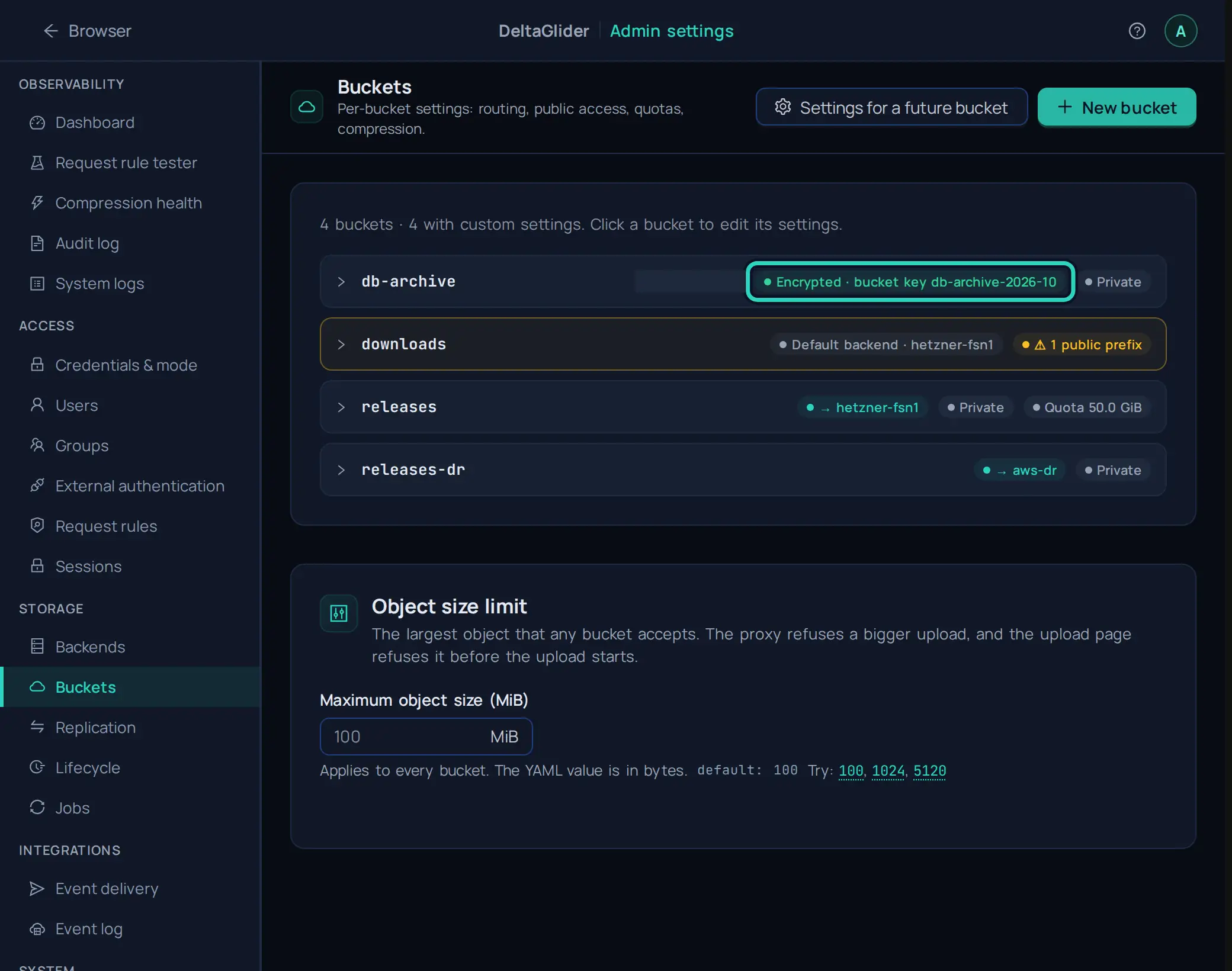
db-archiveshows Encrypted · bucket key db-archive-2026-10. Thedownloadsrow has no encryption chip, because a bucket that stores plaintext like its backend shows no chip. A bucket that takes the encryption of an encrypting backend shows Encrypted · from hetzner-fsn1.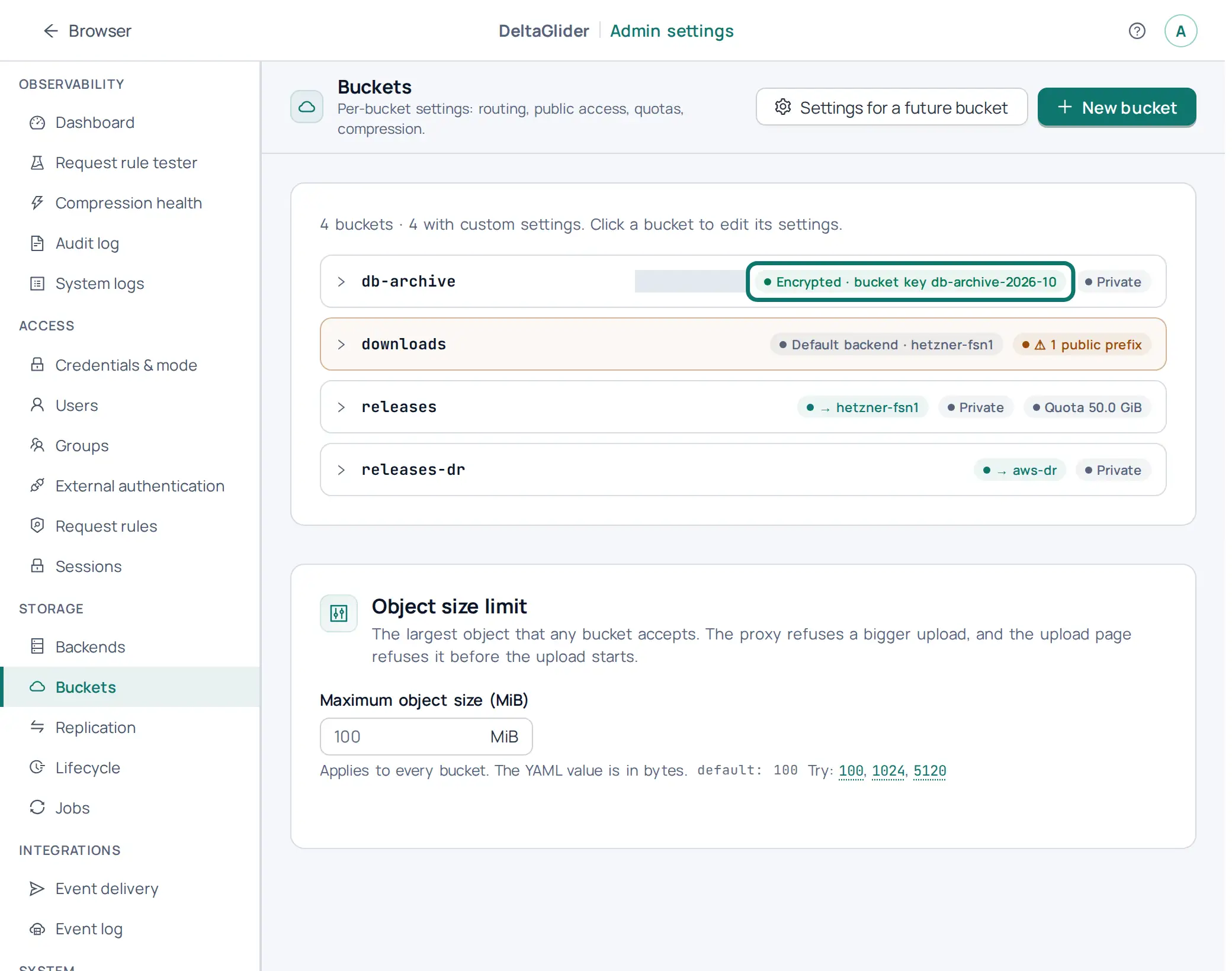
-
The admin API reports the same answer for each bucket (see the admin API reference):
curl -s -b cookies.txt https://s3.acme.example/_/api/admin/buckets \ | jq '.buckets[] | {name, effective_encryption}'db-archivehas"source": "bucket"and"key_id": "db-archive-2026-10";downloadshas"source": "backend"and"mode": "none". -
Write an object through the proxy, and look at the stored copy on the backend, without the proxy. The user metadata carries
dg-encrypted: aes-256-gcm-chunked-v1and adg-sealedvalue that starts with2.. The proxy does not store the key id: thedg-sealedvalue starts with the fingerprint of the bucket key, and the encryption reference shows how to compare it with your key:aws --endpoint-url https://s3.acme.example s3 cp nightly.dump s3://db-archive/nightly/2026-10-14.dump aws s3api head-object --bucket db-archive --key nightly/2026-10-14.dump --profile hetznerAn object in
downloadshas nodg-encryptedmarker and nodg-sealedvalue. -
Read the object back through the proxy, and compare its hash with the original file. Clients notice nothing.
-
Check that the conversion of
db-archiveis closed: its state line shows no progress, andGET /_/api/admin/bucketsshows noconversionin itseffective_encryption. Then read an old object through the proxy again. It must read without an error.
Related#
- How to encrypt data at rest: encryption for every bucket of a backend, and the native SSE modes.
- How to rotate or change encryption keys: rotation recipes and the legacy slot.
- Encryption reference: the rules of a bucket's
encryptionblock. - How to move a bucket to another backend: a bucket's own block moves with it.