Guides: access & security
How to set up OAuth/OIDC single sign-on
Let humans sign in to the admin UI with the identity provider they already have, and land in the right IAM group automatically.
Prerequisites#
- The proxy reachable at a URL the identity provider can redirect to —
https://s3.acme.examplein production.http://localhost:9000works for testing against providers that accept localhost callbacks. - Admin access to the UI (bootstrap password or an IAM admin like
dana). - An IAM group to map people into — this guide uses
Engineering(see How to create IAM users and groups).
1. Register the app with your provider#
Every provider needs the same redirect URL — note there is no provider-name suffix; the callback is generic:
https://s3.acme.example/_/api/admin/oauth/callback
If you use Google (Cloud Console):
- APIs & Services → Credentials → Create credentials → OAuth client ID.
- Application type: Web application.
- Authorized redirect URIs: add the callback URL above.
- Save, then copy the Client ID and Client Secret.
If you use Okta:
- Applications → Create App Integration → OIDC, Web Application.
- Sign-in redirect URIs: the callback URL above.
- Assignments: pick the Okta groups that should be allowed to log in.
- Copy the Client ID and Client Secret.
If you use Azure AD / Entra:
- App registrations → New registration; Redirect URI (Web): the callback URL above.
- Certificates & secrets → New client secret. Copy the value immediately — Azure hides it on the next page load.
- API permissions → Microsoft Graph →
openid,profile,email; addGroupMember.Read.Allif you'll map on AD groups. - Copy the Application (client) ID and the secret value.
If you use any other OIDC provider: it works as long as it serves .well-known/openid-configuration. Collect the issuer URL, client ID, client secret, and scopes (at minimum openid email; add profile and groups if you map on them).
2. Add the provider in the admin UI#
Go to Settings → Access → External authentication → + Add provider.
| Field | Value |
|---|---|
| Name | lower-case ASCII id — appears in the sign-in button (Sign in with okta) |
| Display name | human-readable label shown on the login page |
| Provider type | google / okta / azure / oidc |
| Issuer URL | required for oidc; pre-filled for named providers |
| Client ID / Client secret | from step 1 |
| Scopes | openid email profile minimum; add groups per your provider |
| Enabled | ✓ |
| Priority | lower number = shown first on the login page |
Save, then use the provider row's Test action: the proxy fetches the issuer's .well-known/openid-configuration and reports DNS, TLS, or connectivity problems before any human tries to log in.
3. Map IdP groups to IAM groups#
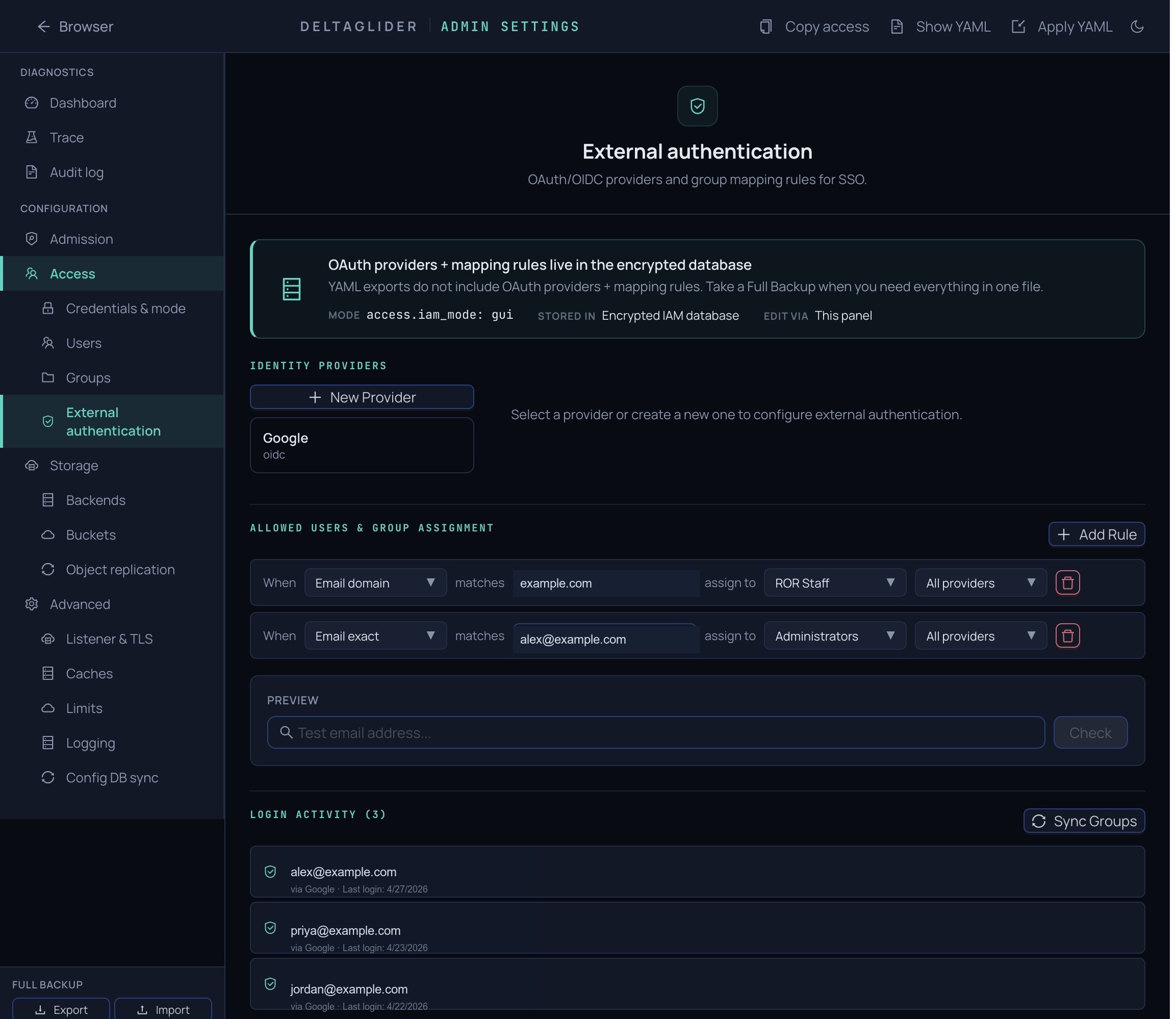
Mapping rules decide which IAM groups a fresh identity lands in, based on its claims. Acme maps the Okta engineering group to the Engineering IAM group.
Go to Settings → Access → External authentication → Mapping rules → + Add rule.
| Field | Value |
|---|---|
| Name | okta-engineering |
| Priority | rules evaluate in ascending priority; first match wins |
| Match | claim path groups, value engineering (exact match; globs */? supported) |
| Target groups | Engineering |
Common claim paths: Google hd (hosted domain) or email (*@acme.example); Okta groups; Azure AD groups (UUIDs) or roles for app roles.
Use the Preview button before relying on a rule: paste an email or claim set and the UI shows which groups that identity would receive — cheaper than logging in as them. Group memberships are merged on each login, never replaced, so manual assignments survive SSO.
4. First login#
Open the login page in a private window. A "Sign in with Okta" button now appears:
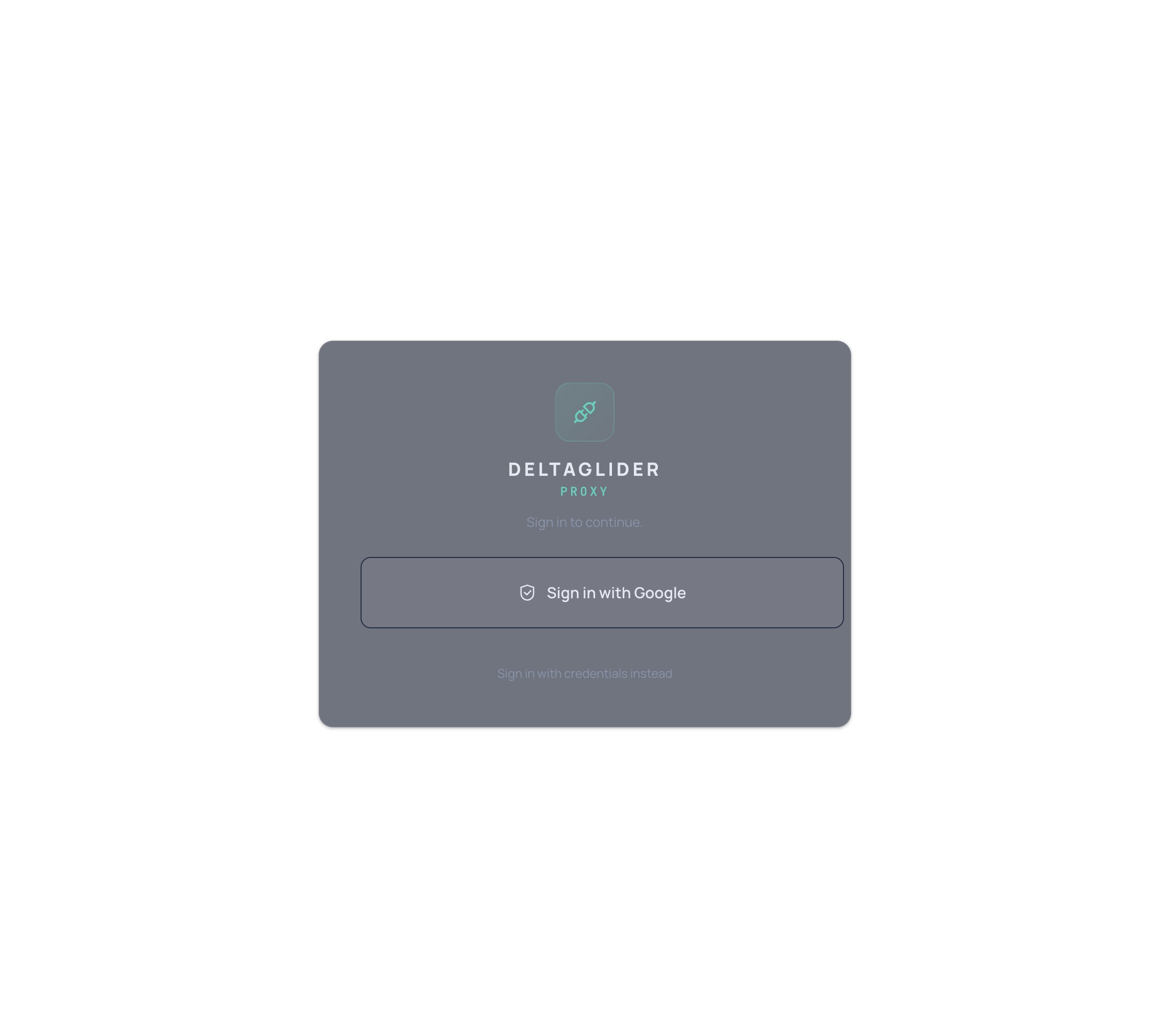
Have dana click it. She authenticates at the provider, consents, and is redirected back. On success:
- A row appears in Settings → Access → External authentication → Identities, linking the provider's subject ID to a DeltaGlider user.
- Matching mapping rules fire —
danais now a member ofEngineering. - She gets a session cookie and lands in the admin UI.
Every successful OAuth login shows as external_login in Settings → Observability → Audit; rejections show as access_denied.
If the login fails#
Three failure modes are provider-side, not proxy-side:
invalid_redirect_uriat the provider. The registered URI doesn't byte-for-byte matchhttps://s3.acme.example/_/api/admin/oauth/callback— watch trailing slashes andhttpvshttps. If a reverse proxy fronts DeltaGlider, also confirm it forwards the sameHostheader the user sees.- Azure
groupsclaim missing. Azure AD omits groups by default; in the app registration go to Token configuration → Add groups claim, then retry the flow. - "Token exchange failed" in the audit log. The proxy couldn't reach the provider's token endpoint. From the proxy container, run
curl -v https://<issuer>/.well-known/openid-configuration— if that fails, fix DNS/network/TLS first; it isn't an OAuth problem.
If login succeeds but the user has no permissions, no mapping rule matched — check with the Preview tool, and verify the auto-created user row in Settings → Access → Users. If you rotate the client secret at the provider, update it in the provider form; it takes effect on save, no restart.
Verify#
- Log in via the provider as a user in the mapped IdP group — expect a session and membership of
Engineering(visible on the user's row). - Log in as a user outside the mapped group — expect a login that lands with no group memberships (or no login at all, if the provider restricts assignments).
- Confirm both attempts in the audit log.
Related#
- Authentication reference — auth modes, claim handling, error responses.
- How to create IAM users and groups — the groups your mapping rules target.
- How to manage IAM as code — providers and mapping rules can live in YAML too.
- About authentication and access control — how OAuth layers on bootstrap and IAM.