Guides: access & security
How to create IAM users and groups
Give every client its own scoped credential — here, a CI pipeline (ci-uploader) that can write firmware builds and nothing else.
1. Enable bootstrap SigV4#
IAM users require authentication to be on. If the proxy still runs open, set the bootstrap credential pair and restart:
# validate
access:
  access_key_id: acme-bootstrap-key
  secret_access_key: a-long-random-secret-of-40-plus-characters
Or via env vars: DGP_ACCESS_KEY_ID + DGP_SECRET_ACCESS_KEY. For the guided zero-to-secured walkthrough, see the Secure your proxy tutorial.
2. Create the user#
Go to Settings → Access → Users → + Add user.
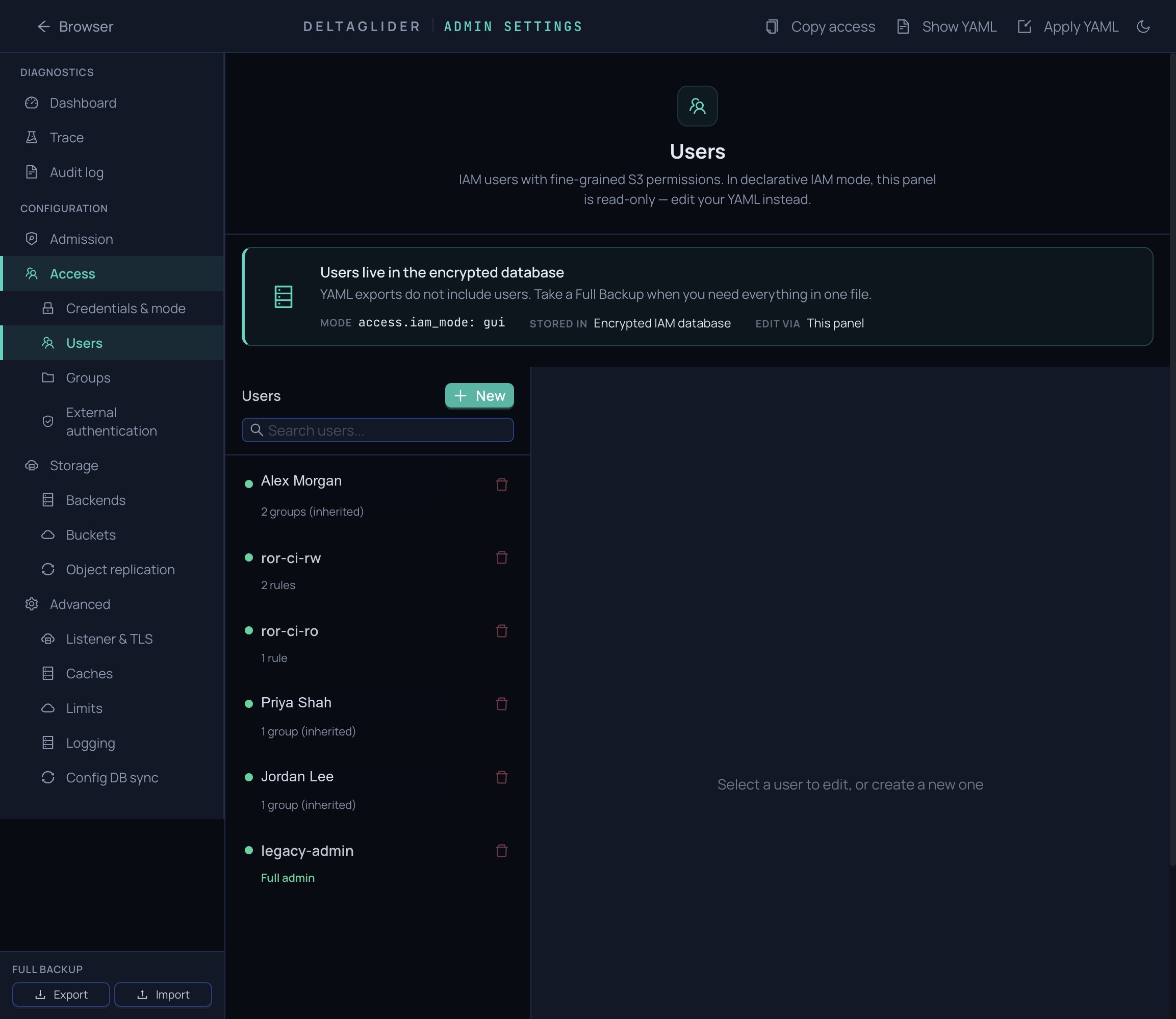
- Name:
ci-uploader. - Leave Access key ID and Secret access key blank to auto-generate them.
- Add permissions (next step) or pick a group.
- Save. The secret is shown once, on the "Created" toast — copy it now. If it's lost, rotate the keys (step 4).
If you script it instead, POST /_/api/admin/users needs name; access_key_id and secret_access_key are auto-generated when omitted, enabled defaults to true, and permissions defaults to empty. Group membership is a separate call: POST /_/api/admin/groups/:id/members. All admin routes require a session cookie from POST /_/api/admin/login — see the admin API reference.
3. Write a permission#
Each permission is an ABAC rule: effect, actions, resources, optional conditions. The shapes you'll write most often:
Write-only CI — ci-uploader may upload firmware builds and list its bucket, nothing else:
[
  { "effect": "Allow", "actions": ["write"], "resources": ["releases/firmware/*"] },
  { "effect": "Allow", "actions": ["list"],  "resources": ["releases"] }
]
Read-only prefix — download access to one folder:
{ "effect": "Allow", "actions": ["read", "list"], "resources": ["downloads/public/*"] }
Full access to one bucket — note the two rules: bucket-level operations match the bare bucket name, object operations match bucket/*:
[
  { "effect": "Allow", "actions": ["*"], "resources": ["db-archive"] },
  { "effect": "Allow", "actions": ["*"], "resources": ["db-archive/*"] }
]
Deny is absolute: if any Deny rule matches — direct or group-inherited — the request fails regardless of Allows. For the full grammar (action-to-S3-operation mapping, glob rules, ${iam:username} identity templates) and the canned starting-point templates in Settings → Access → Users → Apply template, see the IAM permissions reference.
4. Rotate keys without downtime#
POST /_/api/admin/users/:id/rotate-keys swaps the credential atomically — the old key stops working the moment the call returns. If a brief 403 window on the client is acceptable, rotate and redeploy.
To rotate with zero downtime, overlap two credentials:
- Clone the user: per-user row menu → Clone, or
POST /_/api/admin/users/:id/clone. The clone gets fresh keys and a copy of the permissions. - Roll the new credentials out to every client.
- Delete the original user once nothing signs with it (check the audit log at
/_/admin/diagnostics/audit).
If you only need to suspend a user, untick Enabled instead of deleting — the row, groups, and permissions survive.
5. Put shared policy in a group#
Don't copy the same rules onto ten users. Acme's Engineering group carries read access to releases and downloads:
- Settings → Access → Groups → + Add group, name it
Engineering. - Add permissions on the group (same JSON schema as user permissions):
[
  { "effect": "Allow", "actions": ["read", "list"], "resources": ["releases", "releases/*"] },
  { "effect": "Allow", "actions": ["read", "list"], "resources": ["downloads", "downloads/*"] }
]
- Add members: Settings → Access → Users → edit
dana→ Groups → tickEngineering.
Members get the group's rules in addition to their direct rules; a Deny from either source wins. If you use SSO, mapping rules can add people to Engineering automatically on login — see How to set up OAuth/OIDC single sign-on.
6. Switch an AWS client over#
No client-side code changes — only the endpoint and the credentials:
export AWS_ACCESS_KEY_ID=ci-uploader-key
export AWS_SECRET_ACCESS_KEY=ci-uploader-secret
export AWS_ENDPOINT_URL=https://s3.acme.example

aws s3 cp firmware-v2.4.0.bin s3://releases/firmware/firmware-v2.4.0.bin
Or as a profile in ~/.aws/credentials + ~/.aws/config:
# ~/.aws/credentials
[acme-proxy]
aws_access_key_id = ci-uploader-key
aws_secret_access_key = ci-uploader-secret

# ~/.aws/config
[profile acme-proxy]
endpoint_url = https://s3.acme.example
region = us-east-1
boto3, Terraform, rclone, and the rest of the SigV4 ecosystem work the same way — endpoint override plus proxy credentials. See client configuration.
7. Presigned URLs#
aws s3 presign works out of the box; URLs expire after at most 7 days and carry the signing user's permissions — Deny rules apply to presigned requests too.
Verify#
Test the allow and the deny — a policy that's never seen a 403 isn't verified:
# Allowed: write inside the granted prefix
aws --profile acme-proxy s3 cp build.bin s3://releases/firmware/build.bin
# upload: ./build.bin to s3://releases/firmware/build.bin

# Denied: read outside the grant
aws --profile acme-proxy s3 cp s3://db-archive/nightly/dump.sql.gz .
# fatal error: An error occurred (AccessDenied)
Every denial lands in the audit log (Settings → Observability → Audit) with user, action, bucket, and path.
Related#
- IAM permissions reference — full grammar, identity templates, canned templates.
- How to restrict access by IP and prefix — add conditions to these rules.
- How to set up OAuth/OIDC single sign-on — auto-provision humans into groups.
- About authentication and access control — why the layers stack the way they do.