Start here
Your first delta savings
Acme Robotics ships a new firmware build for the Widget 3000 every few weeks. Each release is a multi-megabyte tarball that is 99% identical to the one before it — and every copy is paying full price for storage. In this tutorial we'll run DeltaGlider Proxy, upload two firmware versions through it, and watch the second one shrink to almost nothing.
By the end you'll have a proxy on localhost:9000 storing two full firmware releases in barely more than the space of one — and you'll have proved, hash against hash, that what comes back out is byte-identical to what went in.
You'll need Docker and the AWS CLI installed. Everything else comes in the container.
Step 1: run the proxy#
We'll run the published Docker image, with a named volume so our data survives restarts. For this first session we explicitly allow open access — no credentials — which is fine on localhost and never anywhere else. (The next tutorial locks this down.)
docker run --rm -it -p 9000:9000 -v dgp-data:/data \
  -e DGP_AUTHENTICATION=none \
  beshultd/deltaglider_proxy
You should see the proxy come up and complain loudly about open access:
INFO Starting DeltaGlider Proxy v1.4.2 (built ...)
WARN   Authentication: DISABLED (authentication = "none")
WARN   ╔══════════════════════════════════════════════════════════════════╗
WARN   ║  WARNING: All S3 data is accessible without credentials.        ║
WARN   ║  Set access_key_id + secret_access_key for production use.      ║
WARN   ╚══════════════════════════════════════════════════════════════════╝
INFO Dashboard: http://0.0.0.0:9000/_/
INFO DeltaGlider Proxy listening on http://0.0.0.0:9000
Because we passed DGP_AUTHENTICATION=none, there are no credentials and no bootstrap password — the proxy is wide open, which is the point for this first localhost run. The next tutorial turns authentication on; that's when the proxy generates and prints a one-time bootstrap password (and only when its output is an interactive terminal — in containers and CI the plaintext is withheld and only a hash is logged).
Leave this terminal running. Everything else happens in a second terminal and in the browser.
Step 2: open the browser UI#
Open http://localhost:9000/_/ in your browser.
Because the proxy is in open-access mode, the embedded S3 browser connects by itself — no login screen. You should see the file browser with an empty bucket list in the left sidebar, and a blue "Signed in for files only" note — that's fine, files are all we need today. Nothing to browse yet; let's fix that.
Step 3: create the bucket and upload v1.4.0#
First, let's fabricate a realistic firmware tarball: a few megabytes of binary payload plus a version file. In your second terminal:
mkdir -p firmware-build
head -c 5242880 /dev/urandom > firmware-build/payload.bin
echo "version=1.4.0" > firmware-build/VERSION
tar -cf fw-1.4.0.tar firmware-build
ls -lh fw-1.4.0.tar
-rw-r--r-- 1 you staff 5.0M Jun 12 10:30 fw-1.4.0.tar
Now back in the browser:
- In the left sidebar, click the + button (Create bucket). Name it
releasesand click Create. The bucket appears in the sidebar — click it. - Click Upload Files in the sidebar.
- In the Files will be uploaded to box, type
firmware/widget-3000as the destination path. Notice the target readout above the field updates toreleases / firmware/widget-3000/. - Drop
fw-1.4.0.taronto the drop zone (or use the select button) and click Upload.
When the upload finishes, navigate back into the bucket and open the firmware/widget-3000/ folder. You should see one row:
fw-1.4.0.tar 5.0 MB just now Delta
Behind the scenes, this first upload just became the folder's reference baseline — one full copy that every future version is stored as a tiny diff against. (The row reads Delta because even the first file is recorded that way; its diff against itself is trivially small.) The visible savings start with the second upload.
Step 4: make v1.4.1 and upload it from the command line#
Acme's next release changes a version string and adds a changelog — a tiny diff on a big file, exactly the workload this proxy exists for. Make it:
echo "version=1.4.1" > firmware-build/VERSION
echo "fix: watchdog timeout on cold boot" > firmware-build/CHANGELOG
tar -cf fw-1.4.1.tar firmware-build
This time we'll upload the way a CI pipeline would: with the AWS CLI. The proxy speaks standard S3, so the only special thing is the endpoint URL. In open-access mode any credentials pass, so dummies will do:
export AWS_ACCESS_KEY_ID=dummy
export AWS_SECRET_ACCESS_KEY=dummy
export AWS_DEFAULT_REGION=us-east-1
aws configure set s3.addressing_style path

aws --endpoint-url http://localhost:9000 \
  s3 cp fw-1.4.1.tar s3://releases/firmware/widget-3000/fw-1.4.1.tar
You should see the upload complete just like it would against AWS:
upload: ./fw-1.4.1.tar to s3://releases/firmware/widget-3000/fw-1.4.1.tar
Nothing about that command knew compression was happening. That's the point — the proxy is invisible to S3 clients.
Step 5: see the savings#
Back in the browser, refresh the firmware/widget-3000/ folder. There are two rows now, and the new one is different:
fw-1.4.0.tar    5.0 MB    2 minutes ago    Delta
fw-1.4.1.tar    5.0 MB    just now         Delta
Both rows are tagged Delta — every version is stored as a diff against the folder's reference baseline.
Click the fw-1.4.1.tar row. An inspector drawer slides in from the right with the object's details, and near the top sits the number we came for — the Savings panel:
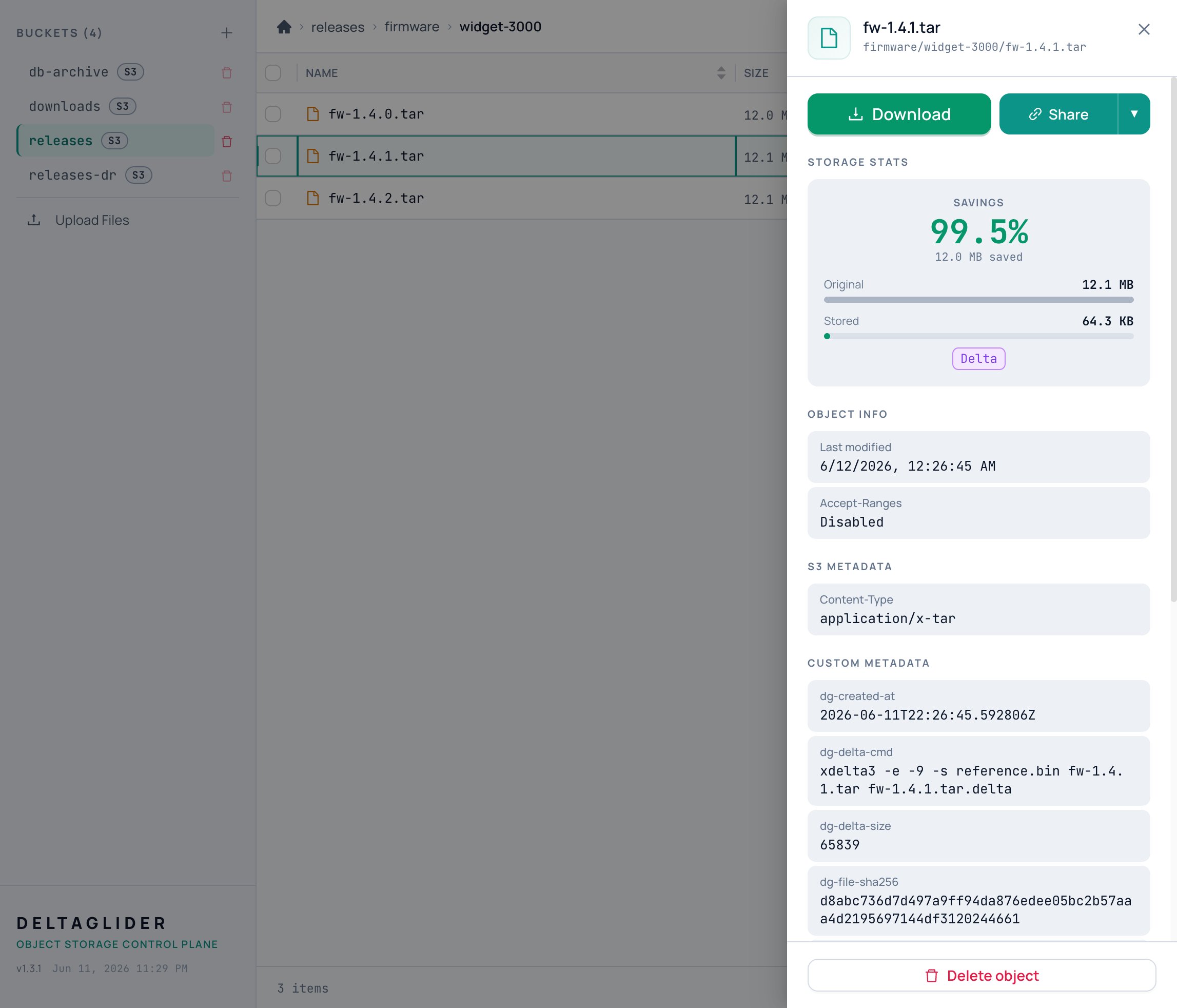
You should see 100.0% (the display rounds; the exact figure is a string of nines), and below it two comparison bars: Original at 5.0 MB, and Stored at a few hundred bytes — in our run, 393 B. That sliver is the xdelta3 diff that actually landed on disk.
So where did the bytes go? The folder holds exactly one full copy — the reference baseline from step 3 — and every version rides on it as a tiny diff. Two full releases, one release's worth of storage plus a few hundred bytes. That's the deal, and it gets better with every version you ship. (How delta compression works has the whole story.)
Step 6: prove the round trip#
A 99.9% saving is only impressive if the file comes back intact. Let's download v1.4.1 and compare checksums:
aws --endpoint-url http://localhost:9000 \
  s3 cp s3://releases/firmware/widget-3000/fw-1.4.1.tar fw-1.4.1.roundtrip.tar

shasum -a 256 fw-1.4.1.tar fw-1.4.1.roundtrip.tar
(shasum ships with macOS and most Linux distributions; it's the same algorithm as sha256sum.)
You should see two identical hashes:
2c9d2e4f8a1b...e7d0  fw-1.4.1.tar
2c9d2e4f8a1b...e7d0  fw-1.4.1.roundtrip.tar
The proxy reconstructed the full file from the reference plus the stored delta, on the fly, and handed back exactly the bytes we uploaded.
What you built#
You now have a running S3-compatible proxy that:
- serves a real bucket (
releases) to any standard S3 client, - stored your second firmware release as a ~99.9% smaller delta,
- and returns byte-identical files on download — verified by hash.
Leave the container running: the next tutorial picks up exactly here.
Where next#
- Securing your first proxy — close the open-access hole, set your own admin password, and give CI its own scoped credentials. Do this one next.
- How delta compression works — what a reference is, when files are delta-eligible, and why the first upload stays full size.
- Set bucket compression and quotas — tune the ratio threshold and caps per bucket.