Security Basics
Step-by-step guide from open access to production security
A step-by-step guide to taking your proxy from open access to production-ready security. Each step explains what to configure, why it matters, and shows the exact configuration.
Before You Start
A fresh DeltaGlider Proxy installation refuses to start without authentication credentials. To run in open access mode for local development, you must explicitly set authentication = "none" in the config or DGP_AUTHENTICATION=none as an environment variable. This is never acceptable in production. This guide walks you through each security layer.
flowchart LR
    A["INTERNET"] --> B["Reverse Proxy<br/>TLS + headers"]
    B --> C["DeltaGlider Proxy<br/>auth, IAM, rate limiting"]
    C --> D["S3 Backend"]
Step 1: Enable SigV4 Authentication
What: Require all S3 clients to sign requests with AWS SigV4 signatures.
Why: Without this, anyone who can reach your proxy can read, write, and delete all data. SigV4 is the standard S3 authentication mechanism — all S3 clients and SDKs support it natively.
# deltaglider_proxy.yaml
access:
  access_key_id: my-proxy-key
  secret_access_key: my-super-secret-key-change-me
# Or via environment variables
DGP_ACCESS_KEY_ID=my-proxy-key
DGP_SECRET_ACCESS_KEY=my-super-secret-key-change-me
Verify: After restart, unauthenticated requests return 403 AccessDenied:
# This should fail with AccessDenied
curl http://localhost:9000/

# This should succeed
aws s3 ls --endpoint-url http://localhost:9000
# (using ~/.aws/credentials with the key above)
Client configuration example (AWS CLI):
aws configure
# Access Key ID: my-proxy-key
# Secret Access Key: my-super-secret-key-change-me
# Region: us-east-1 (any value works)
Step 2: Set a Bootstrap Password
What: The bootstrap password encrypts the IAM database, signs admin session cookies, and gates admin GUI access.
Why: Without it, one is auto-generated and printed to stderr on first run. If you lose it, you lose access to the IAM database. Setting it explicitly ensures you control it.
# Generate a password and get the hash
./deltaglider_proxy --set-bootstrap-password
# Enter password: ********
# Hash: $2b$12$...
# Base64: JDJiJDEy...
# deltaglider_proxy.yaml
advanced:
  bootstrap_password_hash: "JDJiJDEyJENYbDVPRm84bDg2..."
# For Docker (avoids $ escaping issues), use base64 form
DGP_BOOTSTRAP_PASSWORD_HASH=JDJiJDEyJENYbDVPRm84bDg2...
Note: infra secrets (bootstrap hash, every per-backend encryption key + any
legacy_keyshim) are stripped from canonical exports (/config/export,config migrate) — they never round-trip through the YAML artifact. Inject them via env var at deploy time. Non-secret identifiers (key_id,kms_key_id) DO survive redaction so operators can see which backend uses which key material.
Why base64? Bcrypt hashes contain $ characters which Docker, docker-compose, and shell scripts interpret as variable references. The base64 form avoids this entirely.
Step 3: Create IAM Users
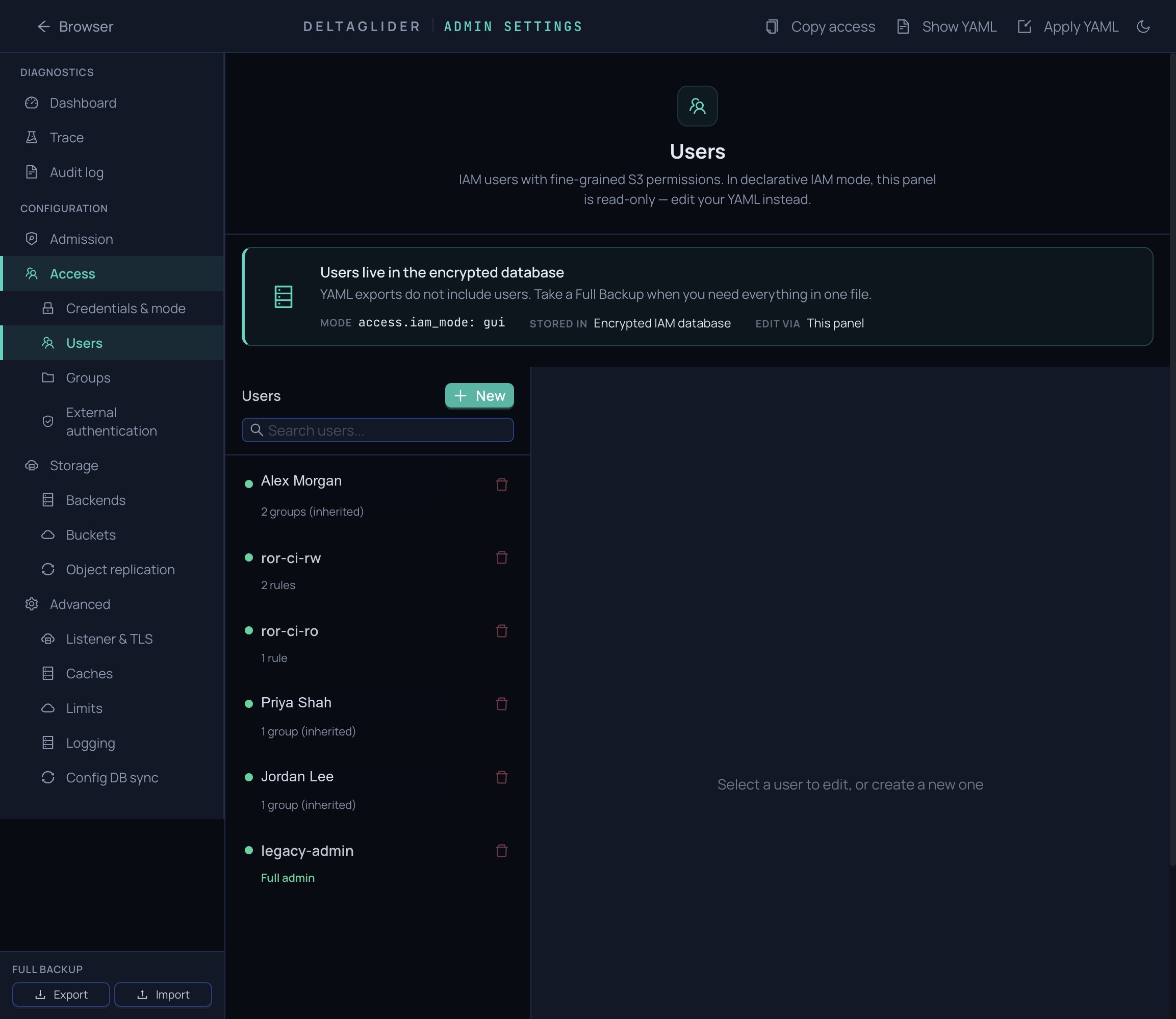
What: Move from a single shared credential to per-user access keys with fine-grained permissions.
Why: Shared credentials can't be revoked individually. If a CI pipeline's key leaks, you'd have to change the key for everyone. IAM users let you rotate keys per-user and restrict access to specific buckets/prefixes.
- Open the admin GUI at
http://your-proxy:9000/_/ - Log in with the bootstrap password
- Go to Users tab
- Click Create User
- Set permissions:
[!TIP] Example Profile: CI Pipeline User Username:
ci-builderAccess Key: (auto-generated)Permissions Rules:
Allow| Actions:read, write, list| Resources:builds/*Deny| Actions:delete| Resources:*
Permission examples:
| Use case | Actions | Resources |
|---|---|---|
| Read-only access | read, list | my-bucket/* |
| CI upload | read, write, list | my-bucket/builds/* |
| Full admin | * | * |
| Read everything, no delete | read, list | * + Deny delete on * |
Step 3a: Enable OAuth/OIDC (alternative to manual IAM users)
What: Let your team log in with their corporate identity (Google, Okta, Azure AD) instead of managing individual S3 credentials.
Why: No shared credentials to leak. No keys to rotate manually. New hires get access on first login. Departing employees lose access when their IdP account is disabled.
- Open the admin GUI → Admin Settings → Authentication
- Click Add Provider (e.g., Google OIDC)
- Enter Client ID, Client Secret, and Issuer URL from your identity provider
- Add Mapping Rules to auto-assign permissions:
email_domain = "company.com"→ add todevelopersgroupemail_glob = "admin-*@company.com"→ add toadminsgroup
- Save. The login page will now show "Sign in with Google" alongside credentials.
OAuth users get auto-provisioned IAM accounts on first login. Their group memberships (and thus permissions) are updated on every subsequent login based on the mapping rules.
[!TIP] OAuth + IAM work together You can have both: IAM users for CI pipelines (programmatic access) and OAuth for humans (browser access). They coexist naturally.
Step 3b: Publish Public Folders (optional)
What: Make specific folders downloadable without any authentication.
Why: Release artifacts, public docs, or shared assets that should be accessible via a simple URL — no S3 credentials, no OAuth, just curl.
- Go to Admin Settings → Backends
- Find the bucket policy card (or create one)
- Under Public Prefixes, add the folder paths (e.g.,
builds/,releases/) - Save
Anonymous users can now GET/HEAD/LIST objects under those prefixes. Writes still require authentication.
# Works without credentials:
curl http://your-proxy:9000/releases/builds/v1.zip -o v1.zip
Step 4: Configure Rate Limiting
What: Limit how many failed authentication attempts an IP can make before being locked out.
Why: Without rate limiting, an attacker can brute-force credentials by trying thousands of key combinations per second. Rate limiting makes this impractical.
  Failed attempts over time:

  Attempt 1-10:  No delay        ──→ Normal typos
  Attempt 11:    100ms delay     ──→ Suspicious
  Attempt 12:    200ms delay     ──→
  Attempt 13:    400ms delay     ──→ Progressive slowdown
  ...                            ──→
  Attempt 17+:   5s delay (cap)  ──→ Very expensive to brute force
  Attempt 100:   LOCKOUT 10min   ──→ IP blocked entirely
The defaults are permissive (100 attempts, 5-minute window, 10-minute lockout). For higher security:
DGP_RATE_LIMIT_MAX_ATTEMPTS=20     # Lock out after 20 failures
DGP_RATE_LIMIT_WINDOW_SECS=600     # Count failures over 10 minutes
DGP_RATE_LIMIT_LOCKOUT_SECS=3600   # Lock out for 1 hour
Step 5: Deploy Behind a Reverse Proxy with TLS
What: Terminate TLS at a reverse proxy (nginx, Caddy, Traefik) and pass client IPs via headers.
Why: S3 clients expect HTTPS. A reverse proxy handles certificate management, HTTP/2, and connection pooling. The proxy headers let DeltaGlider see real client IPs for rate limiting and IAM conditions.
  Client ──HTTPS──→ [nginx/Caddy] ──HTTP──→ [DeltaGlider :9000]
                    (TLS termination)       (trusts X-Forwarded-For)
Caddy example (automatic TLS):
files.example.com {
    reverse_proxy localhost:9000
}
nginx example:
server {
    listen 443 ssl;
    server_name files.example.com;
    ssl_certificate /etc/ssl/certs/proxy.pem;
    ssl_certificate_key /etc/ssl/private/proxy-key.pem;

    location / {
        proxy_pass http://127.0.0.1:9000;
        proxy_set_header X-Forwarded-For $proxy_add_x_forwarded_for;
        proxy_set_header X-Real-IP $remote_addr;
        proxy_set_header Host $host;
    }
}
DeltaGlider configuration:
# Trust proxy headers (default: true, safe behind reverse proxy)
DGP_TRUST_PROXY_HEADERS=true

# Require HTTPS for session cookies
DGP_SECURE_COOKIES=true
IMPORTANT: If the proxy is exposed directly to the internet (no reverse proxy), set DGP_TRUST_PROXY_HEADERS=false. Otherwise, attackers can spoof their IP to bypass rate limiting.
Step 6: Enable Encryption at Rest (optional)
What: Pick an encryption mode per storage backend. Four choices: none (plaintext), aes256-gcm-proxy (proxy-side AES-256-GCM), sse-kms (AWS KMS), sse-s3 (AWS-managed AES256).
Why: If someone walks off with the disks — or your S3 backend is breached at the storage layer — the ciphertext is useless without the key. Metadata (object names, sizes, compression ratios) stays unencrypted.
Configure per-backend in the admin GUI:
- Admin → Configuration → Storage → Backends
- On each backend card, pick an encryption mode from the dropdown:
- None — plaintext. Appropriate for public-CDN buckets.
- AES-256-GCM (proxy-side) — the proxy encrypts before the backend sees anything. Generate a 256-bit key in-browser; copy it to a secret manager; check "I have stored this key safely"; Apply.
- SSE-KMS — paste the KMS ARN. AWS encrypts on write and decrypts on read for callers with KMS permission. The proxy never handles key material.
- SSE-S3 — AWS-managed AES256. No ARN; AWS picks the key.
- Apply. The change takes effect on the next write to that backend.
Alternatively, via env var (recommended for proxy-AES — keeps the key out of the YAML artifact):
# For a named backend:
DGP_BACKEND_EU_ARCHIVE_ENCRYPTION_KEY=$(openssl rand -hex 32)
# For the singleton-backend deployment (no `backends:` list):
DGP_ENCRYPTION_KEY=$(openssl rand -hex 32)
[!WARNING] If you lose a proxy-AES key, encrypted objects on that backend are unrecoverable. DeltaGlider does not escrow keys. There is no recovery path. Store each key somewhere outside the proxy host — a secrets manager, an operator password vault, a sealed envelope. SSE-KMS / SSE-S3 keys are AWS-managed; the risk surface is your IAM and KMS story.
Caveats:
- Rotation within one mode is not automated. Rotating a proxy-AES key via the admin GUI requires either a
legacy_keyshim (to keep reading old objects) or a full copy-through-the-proxy migration to a new backend. - Only new writes are encrypted. Switching a backend's mode does not retroactively encrypt existing objects.
- Mode transitions (proxy-AES → SSE-KMS) use a decrypt-only shim. The admin panel shows an info banner; clear
legacy_keyonce historical objects are gone. - Per-bucket encryption is not supported. Encryption is a backend-scoped choice; buckets inherit the encryption of the backend they route to. Operators who need bucket-level isolation create additional backends.
Large objects (proxy-AES only): Downloads stream end-to-end with ~130 KiB peak RAM regardless of object size; range GETs fetch only the target chunks (O(1) traffic). Uploads buffer the ciphertext in memory (~1× plaintext size) before handing off to the backend; the proxy's max_object_size default of 100 MiB keeps that bounded. Bumping max_object_size for large encrypted uploads means budgeting RAM to match. SSE-KMS / SSE-S3 have no such overhead.
What's encrypted vs. what isn't (mode-dependent body encryption; metadata is always plaintext):
| Layer | none | aes256-gcm-proxy | sse-kms / sse-s3 |
|---|---|---|---|
| Object body (passthrough) | No | Yes — chunked AES-256-GCM | Yes — AWS-side |
| Delta body + reference body | No | Yes — single-shot AES-256-GCM | Yes — AWS-side |
| Object name / size / metadata | No | No | No |
| Transport (network) | Configure TLS at reverse proxy (Step 5) | same | same |
For the per-mode wire format, key-id mismatch detection, and the decrypt-only shim mechanics, see the encryption reference.
Verification Checklist
After completing all steps, verify:
# 1. Unauthenticated access is denied
curl -s http://localhost:9000/ | grep AccessDenied

# 2. Authenticated access works
aws s3 ls --endpoint-url http://localhost:9000

# 3. Admin GUI is accessible
curl -s http://localhost:9000/_/api/whoami
# Should return: {"mode":"iam"} (not "open")

# 4. Rate limiting is active
# (try wrong credentials 5+ times, observe progressive delay)

# 5. TLS is working (if behind reverse proxy)
curl -s https://files.example.com/_/health
Quick Reference
| Layer | Setting | Default | Production |
|---|---|---|---|
| Auth | DGP_ACCESS_KEY_ID | None (open) | Required |
| Auth | DGP_SECRET_ACCESS_KEY | None (open) | Required |
| Admin | DGP_BOOTSTRAP_PASSWORD_HASH | Auto-generated | Set explicitly |
| Rate limit | DGP_RATE_LIMIT_MAX_ATTEMPTS | 100 | 20-50 |
| Rate limit | DGP_RATE_LIMIT_LOCKOUT_SECS | 600 | 1800-3600 |
| Proxy | DGP_TRUST_PROXY_HEADERS | true | true (behind proxy) |
| Cookies | DGP_SECURE_COOKIES | true | true |
| At-rest | DGP_ENCRYPTION_KEY | None (plaintext) | 64-char hex (optional) |
| Debug | DGP_DEBUG_HEADERS | false | false |